
Model Vista Voice Control
Model Vista Voice Control is a separate Windows companion app. Speak or type a command to inspect your library, load and select models, change Model Vista States, move the desktop camera, or adjust supported settings in a running Model Vista application.
The companion connects to Model Vista through AI (MCP) on the same computer and uses your own OpenAI API key for voice and command interpretation. It runs in its own desktop window. You do not need a Codex task or a ChatGPT conversation to use it.
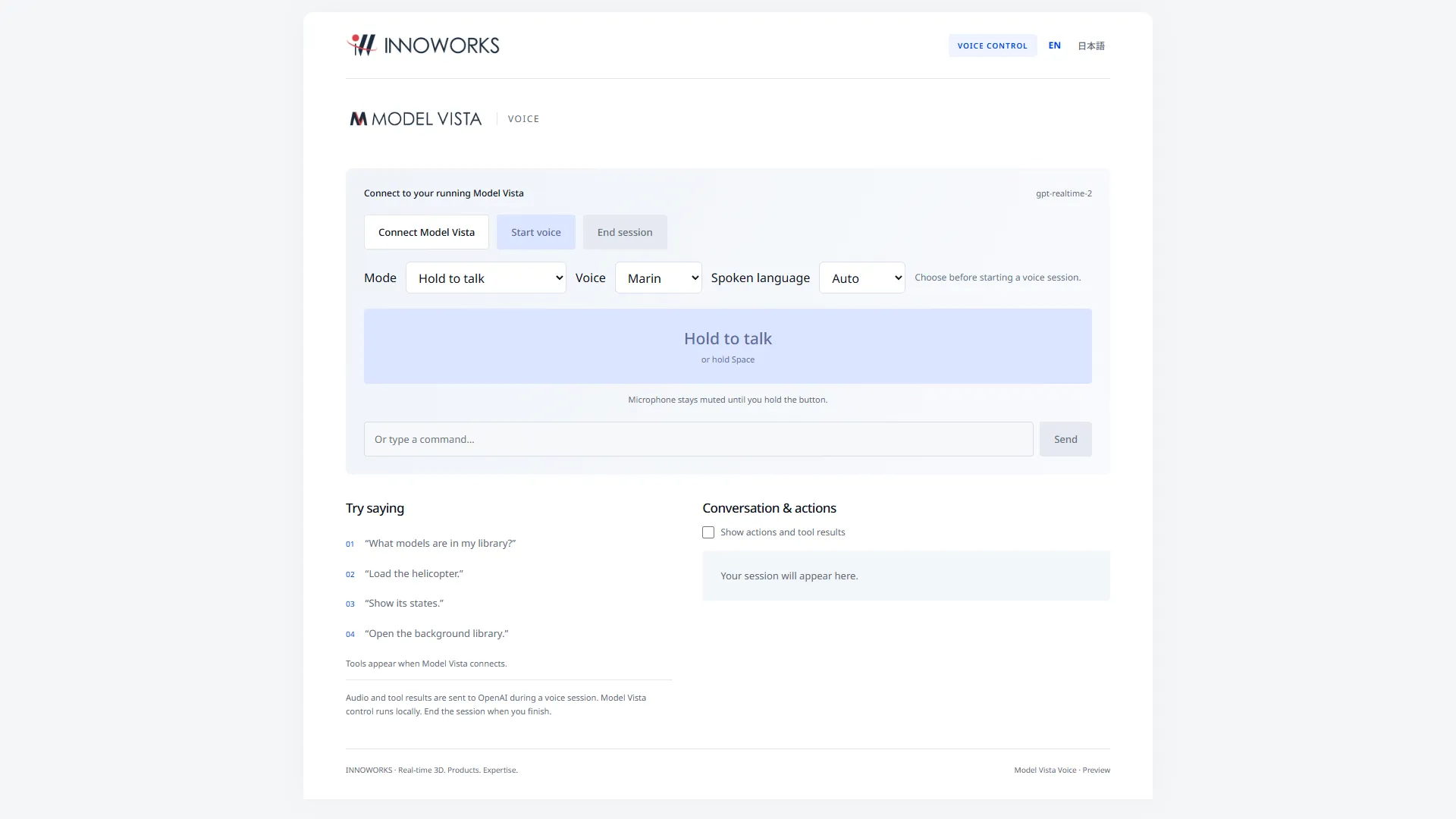
The Voice Control interface before connecting. Screenshots show the app’s shared web interface; the native desktop menu and window frame are outside the capture.
Start here
Section titled “Start here”- Install the app and connect to Model Vista.
- Choose a voice mode, language and automatic disconnect setting.
- Try commands for models, camera, windows and settings.
- Inspect results and resolve problems.
How it connects
Section titled “How it connects”| Connection | Purpose |
|---|---|
| Voice Control → OpenAI | Processes audio, typed requests and tool results using your API account. Requires internet access. |
| Voice Control → Model Vista | Discovers and runs the supported MCP commands on your computer. The default address is http://127.0.0.1:8750/mcp. |
Enable AI (MCP) in Model Vista. Web Remote, REST and Render Streaming do not need to be enabled for this companion.
Available commands depend on the connected Model Vista build, its enabled features and the current scene. The companion exposes a supported subset of MCP tools, rather than every generic API operation. A spoken confirmation should be checked against the actual scene or action result when the outcome is uncertain.
