
Use voice sessions
Choose a mode
Section titled “Choose a mode”Choose Mode before selecting Start voice. End the current session before changing mode, voice or spoken language.
| Mode | How to speak | Models used by this preview |
|---|---|---|
| Hold to talk | Hold the talk button while speaking, then release to send. You can also hold Space when focus is outside text fields and other controls. Wait for the response before the next request. | gpt-realtime-2 by default |
| GPT-Live conversation | Speak after the status shows Live microphone on. Use Mute microphone to pause microphone input, or End session to disconnect. | gpt-live-1 with a gpt-5.6-terra command-processing backend |
Both modes use the available Model Vista commands. You can also type into Or type a command… and select Send while a session is ready. Typed input still requires an active voice session and API access.
GPT-Live uses an open microphone. Muting does not end the connection. Connected time and backend usage are billed to your API account; select End session when finished.
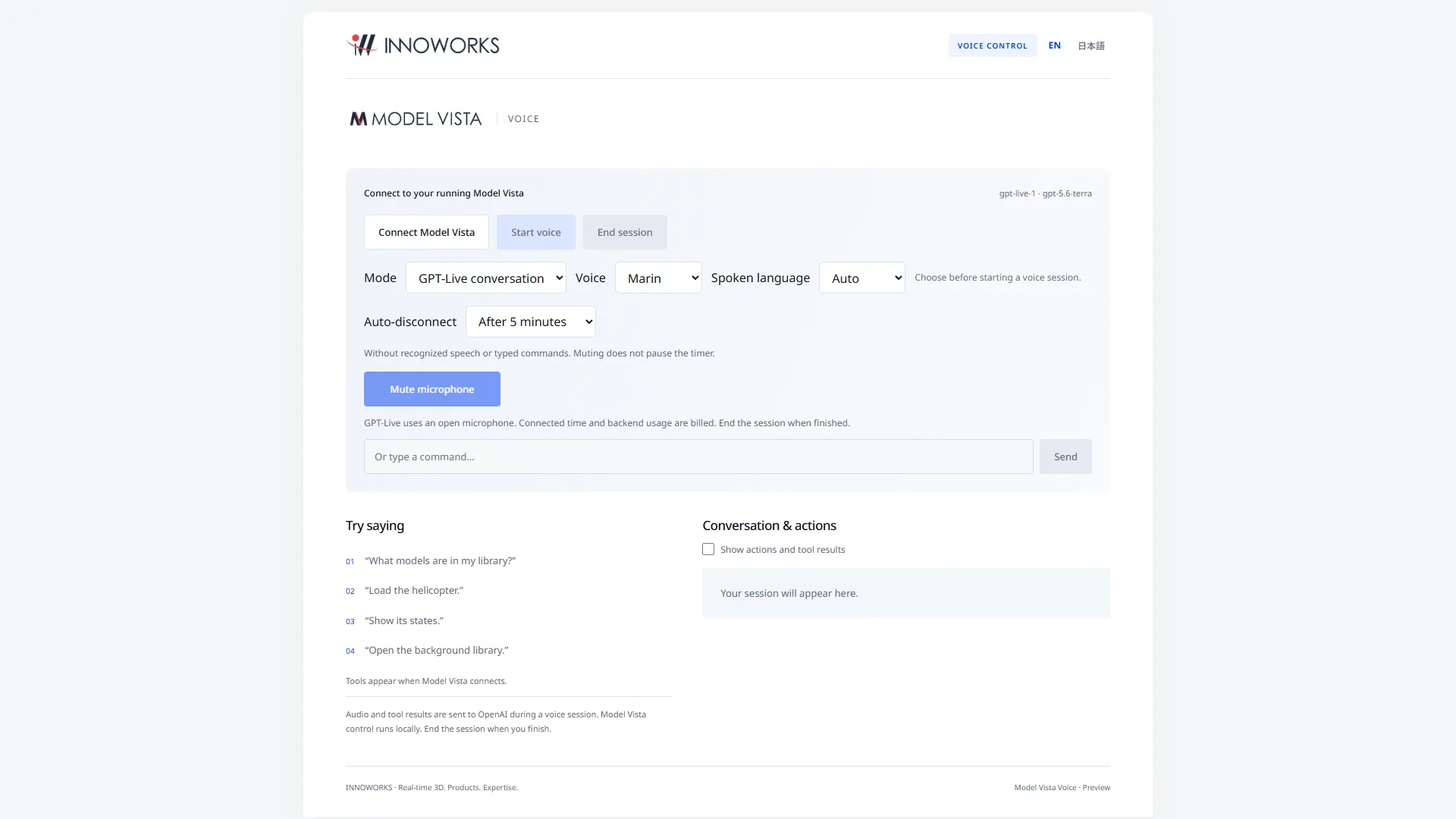
GPT-Live settings before starting a session. The microphone and session controls remain inactive until connected.
Choose voice and languages
Section titled “Choose voice and languages”Voice offers Marin, Cedar, Alloy, Ash, Ballad, Coral, Echo, Sage, Shimmer and Verse. Marin is the default. The app remembers your choice.
Spoken language offers Auto, English and Japanese. Auto follows your speech; an explicit choice asks the assistant to stay in that language. Choose a fixed language if recognition or replies switch unexpectedly. This setting guides the model rather than guaranteeing perfect recognition.
Use EN / 日本語 in the header or app menu to change the interface language. You can change this during a session. UI language is independent of voice and spoken language; model names, state names, existing conversation text and raw tool results are not translated. Installer dialogs remain English.
Disconnect automatically when idle
Section titled “Disconnect automatically when idle”In GPT-Live mode, Auto-disconnect defaults to After 5 minutes. Choose After 2 minutes, After 5 minutes, After 10 minutes or Never. The app remembers the setting.
The timer resets when recognized user speech or a typed command arrives. Assistant speech, tool results and microphone muting do not reset it. A countdown appears during the final 30 seconds. Speak, send a command, or select Stay connected to reset the timer.
This measures recognized activity, not acoustic silence. Background speech recognized as input can extend a session. Background timer throttling can also delay disconnection. It is a convenience feature, not a spending limit, and does not apply to Hold to talk mode.
When the timeout expires, the app ends the voice session and releases its microphone and connection. It allows an outstanding tool request up to 15 seconds to finish before local cleanup. Model Vista stays running and the conversation remains visible.
Read the message log
Section titled “Read the message log”Conversation & actions shows your requests and the assistant’s replies. Each entry displays local time as HH:mm:ss. For live captions, the timestamp updates as more text arrives, so it represents the latest received update to that message. Hover over a timestamp to see the full local date and time.
Enable Show actions and tool results to inspect the actual commands and responses. Hiding these entries only changes their visibility. For an uncertain result, inspect the action and Model Vista before repeating the request.
End a session
Section titled “End a session”Select End session and wait for the disconnected status. If the app reports that final usage was not confirmed, the local connection has closed but final accounting was not confirmed by the service.
Interrupting speech or ending a session does not undo a command already sent to Model Vista. Starting voice again creates a fresh session; ask for the current model or scene state before continuing an uncertain operation. Closing Voice Control also stops its local service.
