
Create material variants
A Material State applies a finish to its mesh targets. Choose Duplicate as variant to create an alternative while retaining the original.
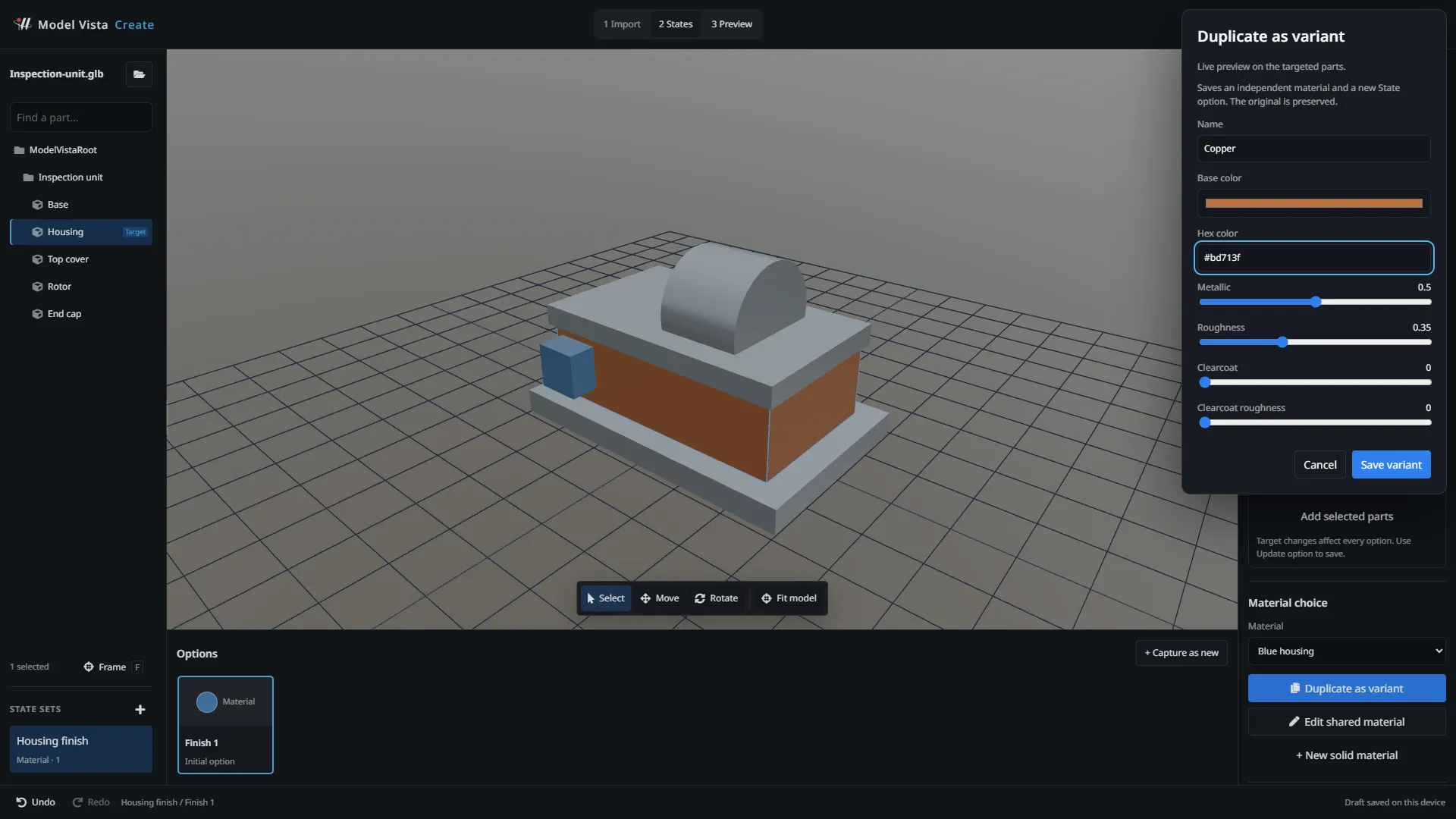
Create an independent finish
Section titled “Create an independent finish”- Select mesh parts and create a Material · choose a finish State set.
- Apply an option and choose its source Material.
- Select Duplicate as variant.
- Enter Name and adjust Base color or Base color / tint, Metallic, Roughness, Clearcoat, and Clearcoat roughness.
- Select Save variant, then click the new option to apply it.
The variant has an independent material record and State option. Texture images are shared, while textures, UV settings, transparency, and other retained material data remain intact.
When a base-color texture exists, tint multiplies its color, including baked-in decals. Unlit materials are not paint-editable. Texture replacement, opacity/glass editing, and custom shaders are outside this paint editor.
Shared materials and slots
Section titled “Shared materials and slots”Edit shared material changes every use of the selected material. Read the listed references before saving; Cancel restores the preview. + New solid material creates a new PBR finish.
In Targets, choose All slots or a named Material slot. Slot selection affects every option in the set. The serialized MaterialSlot is a zero-based index.
Slot targeting requires the current web Viewer. Current Unity Create and older web Viewers may ignore it and replace all slots on a renderer. For those consumers, use separate paint-only renderers and validate the exported result.
Recapture thumbnails after changing a finish. Select Capture thumbnail, then Update option to save the thumbnail.
