
Blender plugin
Model Vista Create Blender plugin 1.0.0 lets you author all seven Model Vista States types in Blender, starting from a Blender hierarchy, a standard GLB/glTF, or an existing GLB+ asset.
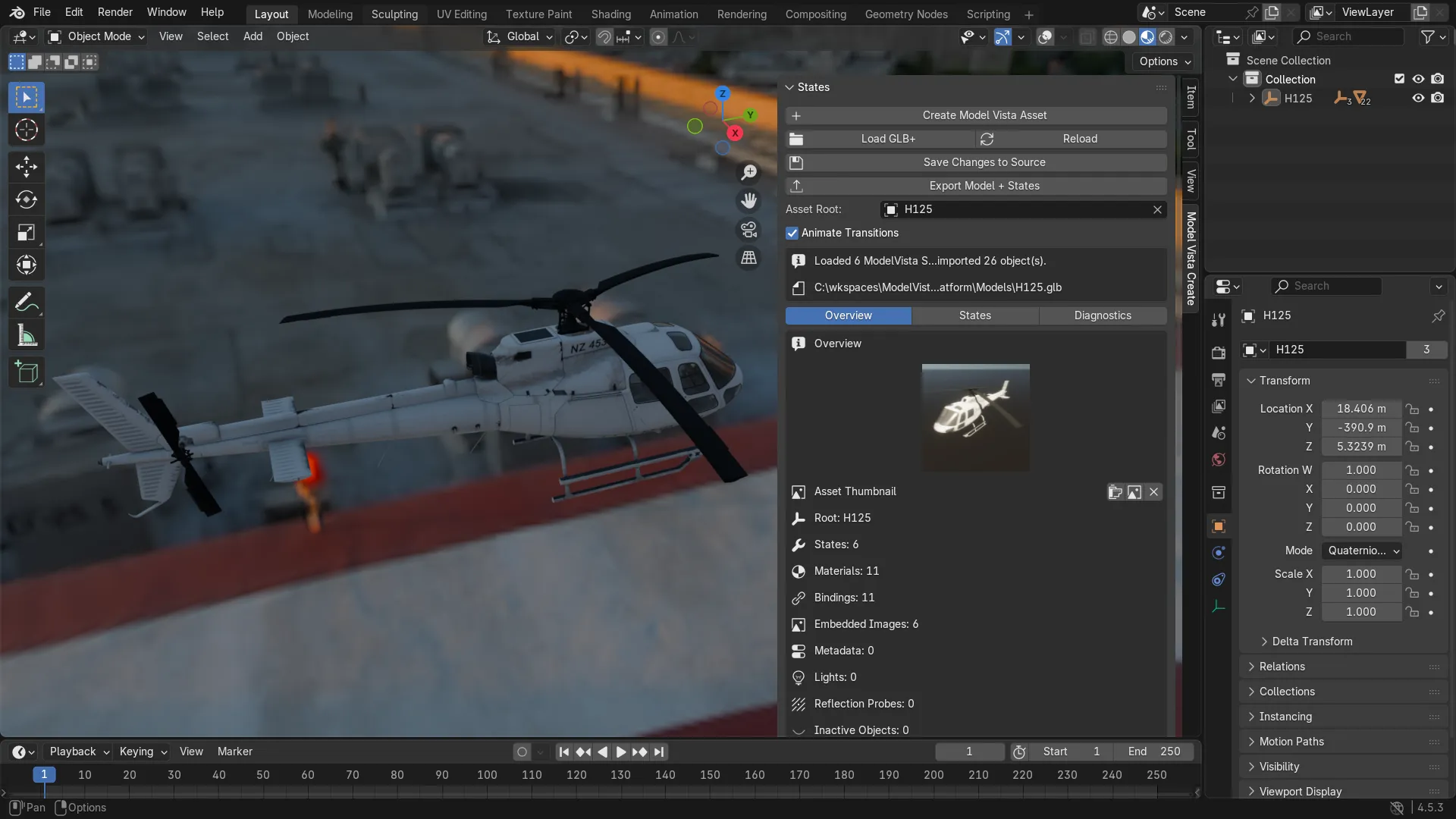
Create your first asset
Section titled “Create your first asset”- Install the plugin, open the 3D Viewport, press
N, and select Model Vista Create. - Select your model root. An Empty parent makes the export hierarchy easy to manage.
- Choose Create Model Vista Asset and confirm Asset Root.
- Select a target inside that hierarchy and choose Add State in States.
- Choose Activation, Transform, Camera, Material, Group, Light, or Animation and name the State.
- Use Add Option, then click its name to preview it. Expand Edit to change values or choose Set as Startup.
- Save your authoring project with Blender’s normal Save command.
- Choose Export Model + States to create a GLB+ containing the model and States.
To edit an existing file, use Load GLB+ with Import Scene On Load enabled. Standard GLB/glTF files can also receive new States. Use Save Changes to Source for extension-only edits to a loaded file.
What is available in 1.0.0
Section titled “What is available in 1.0.0”- Create, duplicate, delete, and reorder States and options, with reference validation.
- Edit names and Transform values inline; assign materials and object targets with pickers.
- Preview transitions, inspect them with a time slider, and filter States by selected objects.
- Capture poses and Light settings, bake object-transform animation, and manage thumbnails.
- Add and edit serialized keyboard, mouse, gamepad, and XR Input Action bindings.
- Keep authoring data on the asset root in the saved blend, with undo/redo support.
Review compatibility and limitations for animation, material, platform, and runtime scope.
Guide contents
Section titled “Guide contents”Model Vista is an INNOWORKS product.