
Preview States
In States, click an option name to preview it. The highlighted button is a transient preview; it does not change the saved startup choice. Expand Edit > Set as Startup to change that choice explicitly.
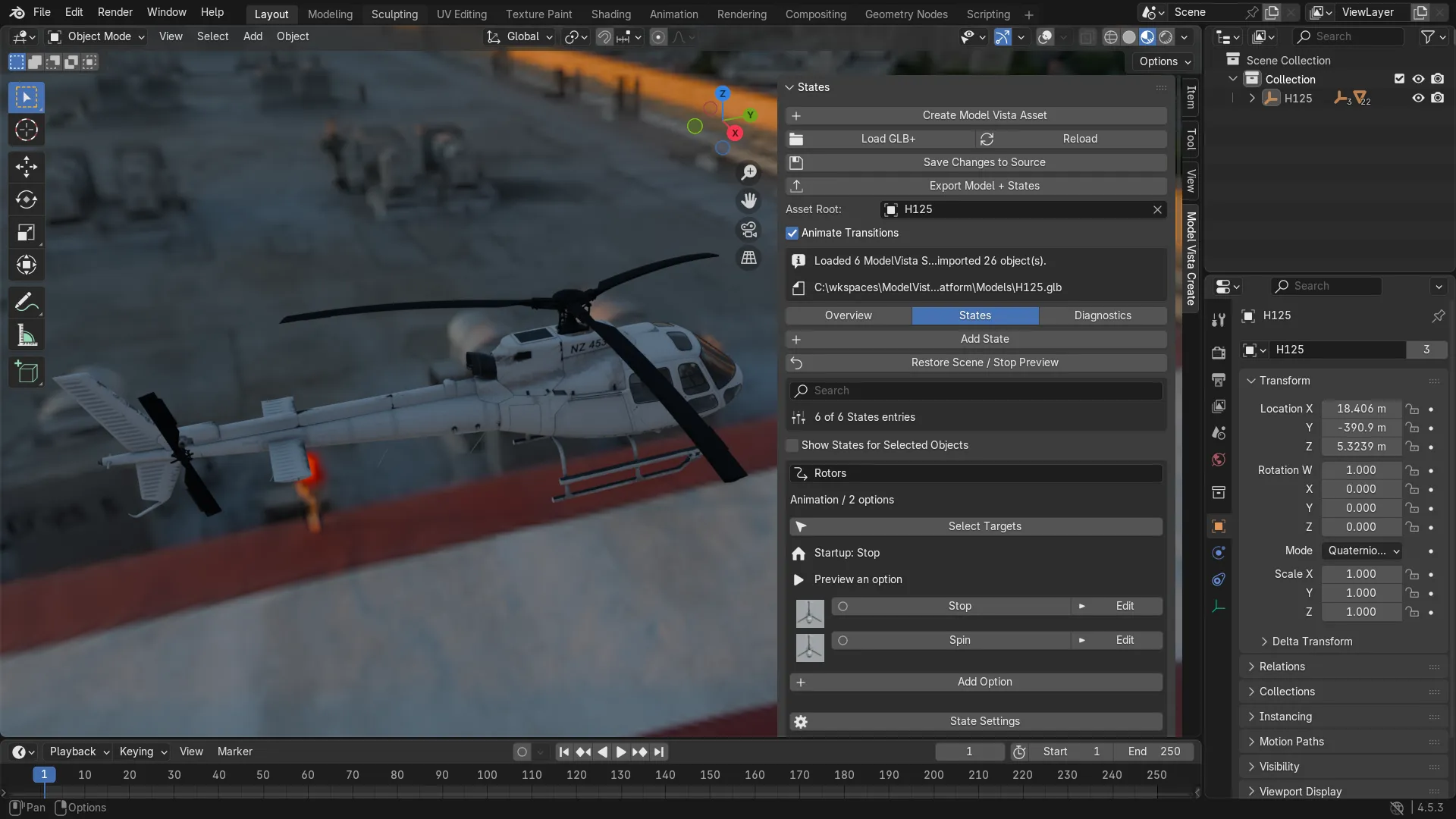
Prepare and restore a preview
Section titled “Prepare and restore a preview”- Load a file with Import Scene On Load, or use your authored Blender asset.
- Confirm Asset Root. The same root appears as Asset Root under Overview > Preview Targets.
- Assign Preview Camera when a Camera State has no explicit camera target.
- For materials, choose whether Preview All Material Slots is needed; normal State behavior uses the first slot.
- Click an option name. Use Restore Scene / Stop Preview to stop playback and restore cached scene values, materials, and Actions.
Diagnostics > Unload Asset clears the session and can optionally delete its hierarchy. Use Restore Scene to reset a preview while keeping the asset loaded. Saving the blend clears previews; export finishes pending transitions before writing.
Preview transitions
Section titled “Preview transitions”Enable Animate Transitions below Asset Root. Expand an option’s Edit controls to set duration/rate and easing; Edit Option Settings exposes additional settings. A destination duration above zero enables a timed transition. Disable Animate Transitions for immediate previews. Selecting another option interrupts that State’s transition.
| State type | Preview behavior |
|---|---|
| Activation | Changes visibility immediately; switches halfway within a timed Group. |
| Transform | Blends position and rotation using Time, Distance, or Angle timing. |
| Camera | Blends pose, field of view, and orthographic size; switches projection after halfway. |
| Material | Blends compatible numeric/color Principled inputs, roughness, and metallic using a temporary material. Texture graphs stay with the starting material until the destination applies. |
| Light | Blends EV100, color, and supported temperature values. Temperature preview requires Blender 5.1; 4.5 previews energy/filter. |
| Animation | Plays supported embedded or reconstructed native glTF object-transform clips with speed, loop, stop, and pose crossfade. |
| Group | Drives linked States with the parent Group duration or each linked option’s duration. |
| Unknown | Preserves data without emulating unsupported behavior. |
Inspect a transition at a chosen time
Section titled “Inspect a transition at a chosen time”- Expand the destination option’s Edit and choose Inspect Transition.
- Choose the source option index and inspection range in seconds.
- Move the 0–100% slider at the top of States to seek within that range.
- Choose Finish Inspection / Restore Scene when finished.
Seeking backwards rebuilds from the saved source option. Inspection leaves startup choices and option values unchanged. Zero-duration changes remain instantaneous. Animation inspection samples supported clips at up to 60 steps per second; long ranges and large hierarchies can be slower.
Normal preview, save, load, and clear end inspection. Editing the asset invalidates inspection on the next seek.
Focus on relevant States
Section titled “Focus on relevant States”Search by State name, type, target path, or option name. Show States for Selected Objects matches exact selected targets, including targets reached through Group links. It does not automatically match every descendant of a selected parent. Turn the filter off if no States appear.
Use Select Targets on a State card to inspect its objects. Inline warnings identify missing targets, missing materials, and invalid Group links. See Create and edit States to repair assignments.
