
Edit Input Actions
Input Actions are serialized for the consuming Model Vista application; they do not drive Blender shortcuts or emulate Unity Input System runtime behavior.
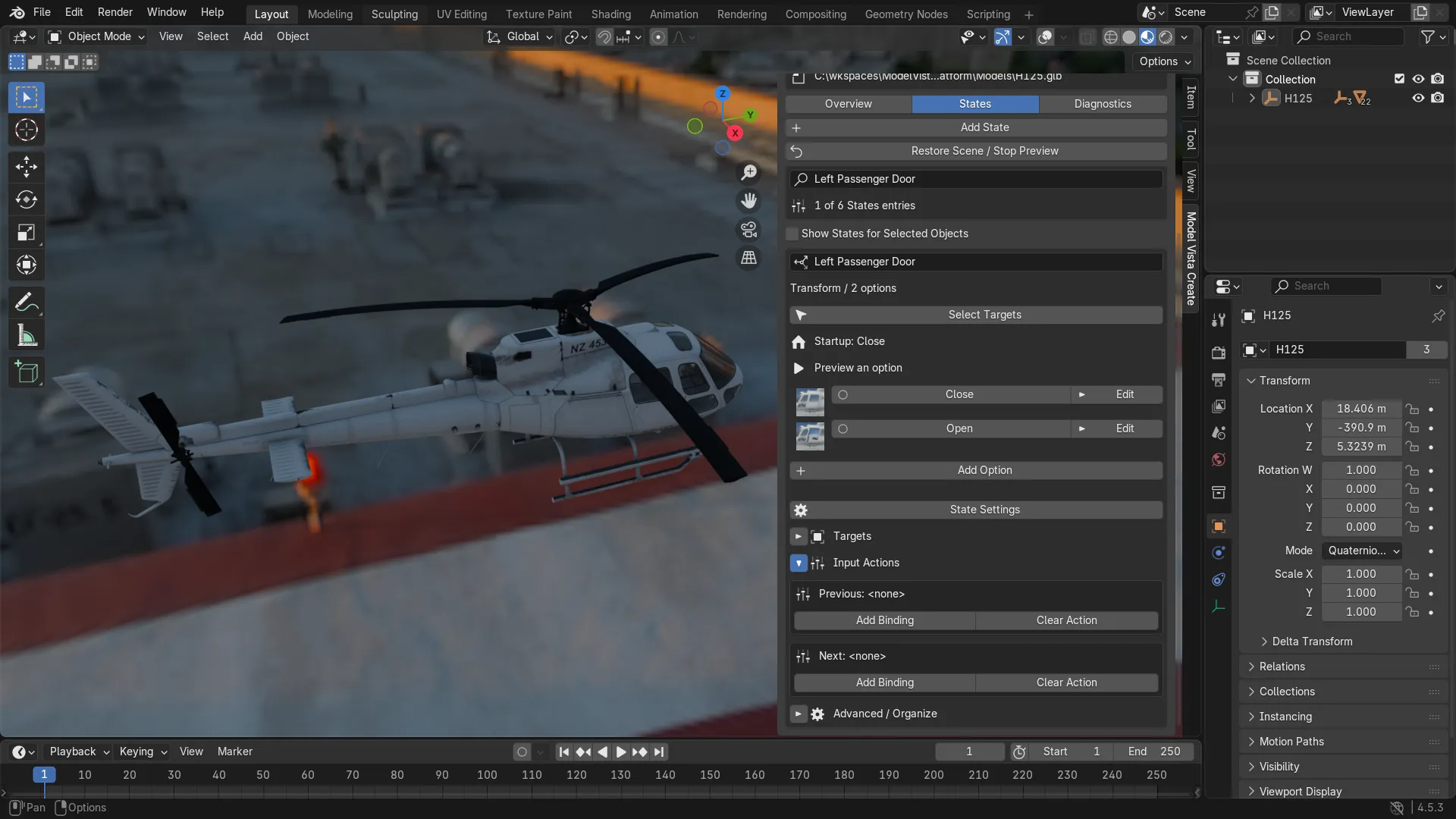
Add a binding
Section titled “Add a binding”- Open a State’s Input Actions for Previous/Next actions, or an option’s Edit > Option Triggers for Hold/Trigger actions.
- Choose Add Binding for the desired action.
- Filter the control picker by device and choose a preset, or enter a Custom Control Path.
- Keep Add to Existing Bindings enabled to append. Disable it only to replace the action with a single Button binding.
- Confirm, then expand Bindings to review the saved paths.
Presets cover letters, digits, F1–F12, navigation/modifier keys, mouse buttons, gamepad buttons/triggers/D-pad, and XR trigger/grip buttons. Custom paths require support from the consuming application’s installed Input System layouts.
Edit or remove bindings
Section titled “Edit or remove bindings”All bindings are shown when Bindings is expanded. Edit Path preserves the binding’s processors, interactions, groups, and composite flags. Remove Binding removes one binding; Clear Action removes the complete action.
The serialized fields are PreviousOptionAction and NextOptionAction on a State, and HoldAction and TriggerAction on an option. Use the explicit action JSON copy controls under Diagnostics to inspect their full data.
There is no live input listening, composite-creation wizard, or full interaction/processor editor. Preserve complex action data unless you intend to replace it. Save the blend, save to source, or export to persist your work.
