
Load and inspect a file
Use Load GLB+ for an existing Model Vista asset or a standard .glb / .gltf that needs new States. Loading does not modify the source file.
Load the file
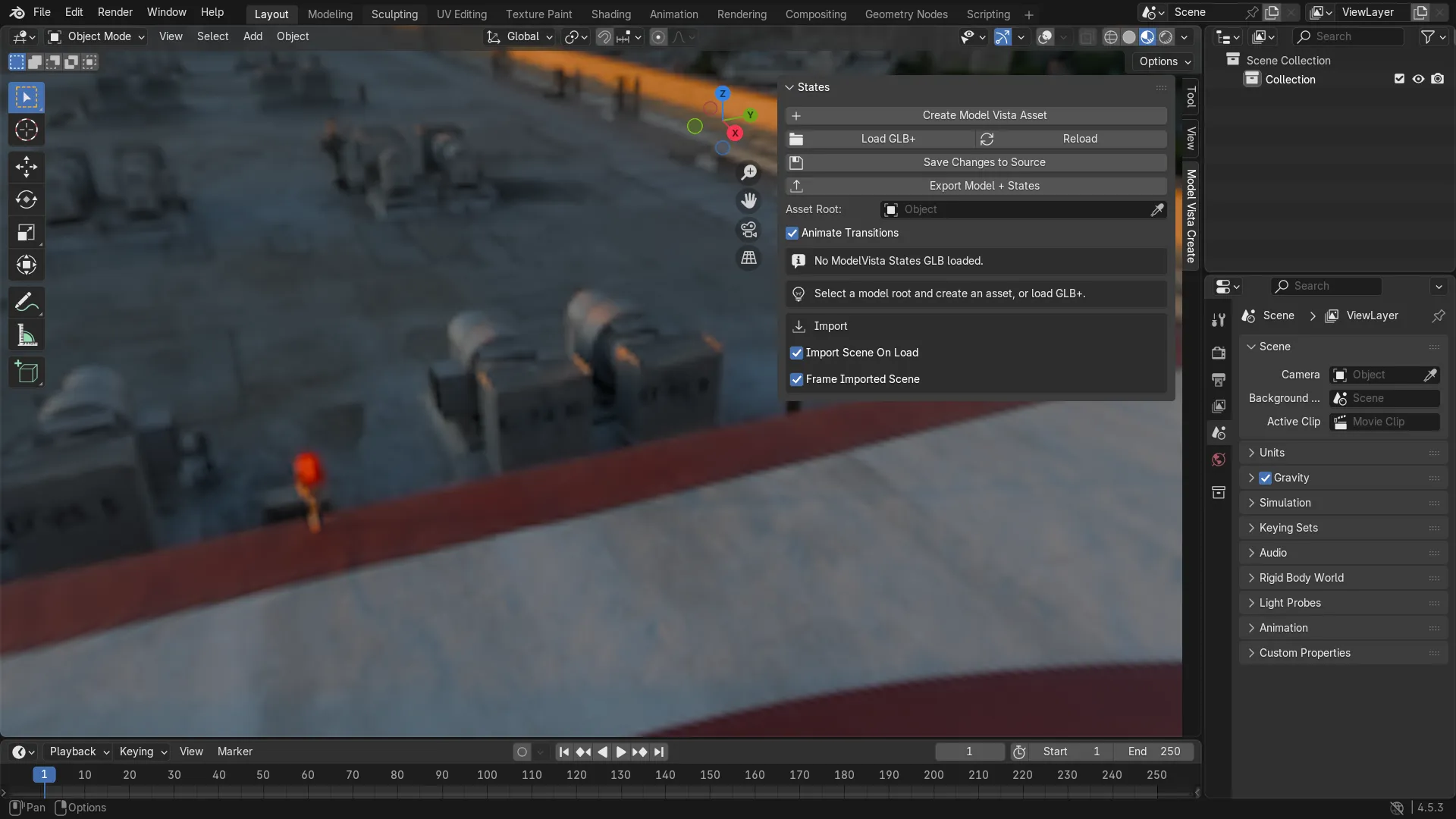
Section titled “Load the file”- Open the 3D Viewport, press
N, and open Model Vista Create. - Enable Import Scene On Load to import the model hierarchy.
- Enable Frame Imported Scene to frame imported objects.
- Choose Load GLB+ and select the file.
- Confirm Asset Root and review Overview, States, and Diagnostics.
The loader validates the file, reads the root glTF document, and recognizes INNOWORKS_configurables or the legacy INNOWORKS_states extension. A standard file can start an authoring asset without an existing States extension. Imported assets restore stored inactive-object visibility. String-valued KHR_lights_punctual numeric fields are normalized in a temporary import copy when needed; this does not replace the original file.
Use the toolbar
Section titled “Use the toolbar”- Create Model Vista Asset creates authoring data for the selected Blender model root.
- Load GLB+ opens a GLB/glTF; Reload reloads the source file and discards session edits.
- Save Changes to Source writes extension edits to the existing source file.
- Export Model + States exports the asset hierarchy and States to a new GLB+.
- Asset Root switches between authored assets; Animate Transitions controls timed previews.
The status area shows operation messages, source path when present, and Unsaved changes. Ordinary names, values, and paths are display text. Explicit copy controls are under Diagnostics.
Review Overview
Section titled “Review Overview”Overview contains the asset thumbnail, root name, State counts by type, materials, bindings, embedded images, metadata, lights, reflection probes, and inactive-object counts. It also contains import settings and Export > Mesh Compression.
Under Preview Targets, Preview Root is the same object as toolbar Asset Root. Preview Camera supplies a camera when no explicit target is stored. Preview All Material Slots overrides the normal first-slot material preview behavior.
Review Diagnostics
Section titled “Review Diagnostics”Use Copy Diagnostics for the extension JSON and the explicit action JSON controls for serialized Input Actions. Repair > Apply Material Bindings restores serialized material slots on the imported hierarchy. Summary counts and binding, metadata, and reflection-probe records help locate problems.
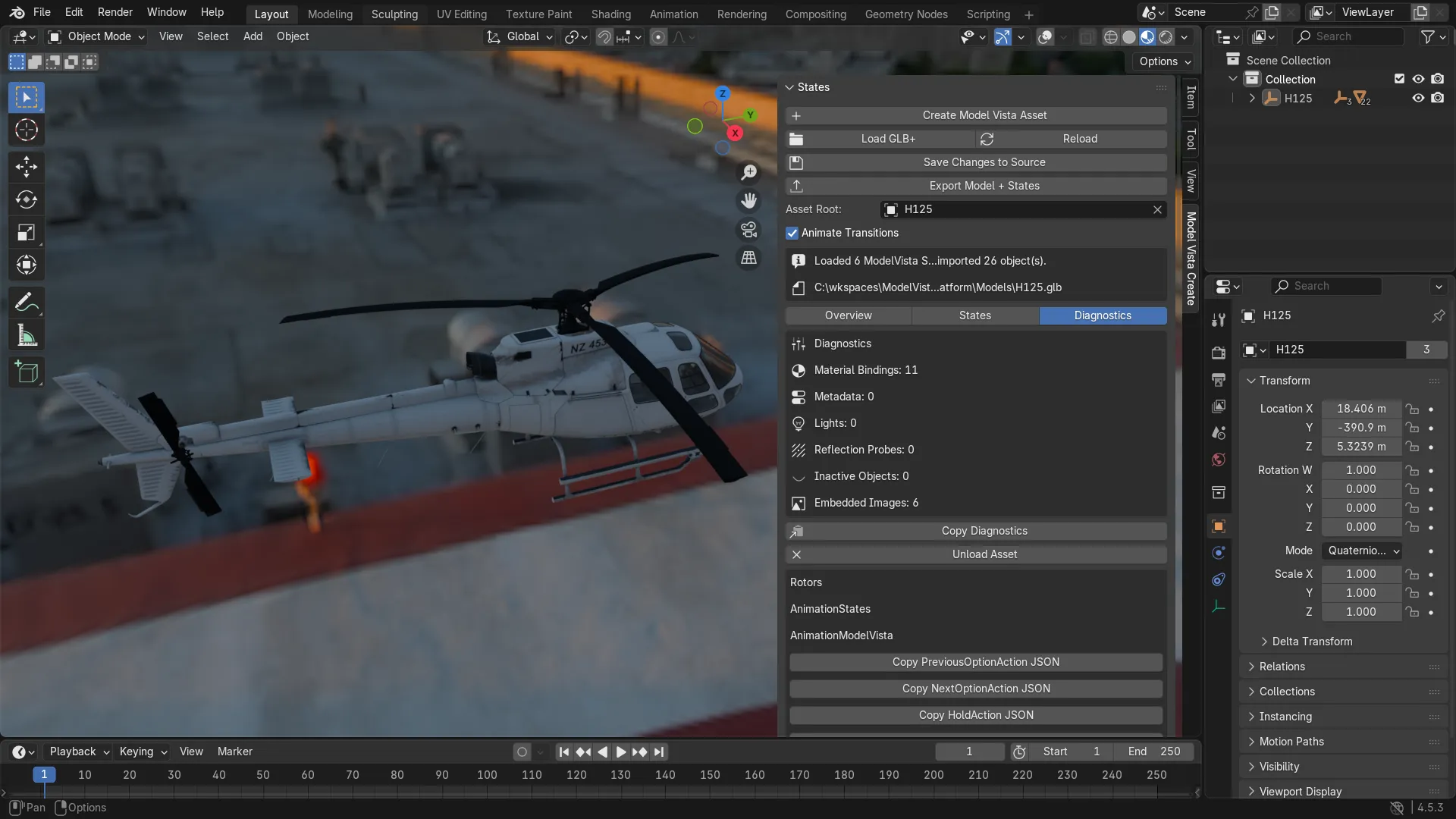
Unload Asset clears the session and can optionally delete the resolved hierarchy. To restore scene values while keeping the asset loaded, use States > Restore Scene / Stop Preview.
