
Model Vista States
Model Vista States are runtime components that expose configurable state sets in a scene or prefab. Each state set has a friendly configurable name, optional thumbnail, UI visibility, current option index, next/previous input actions, optional autoplay settings, and per-option trigger or hold input actions. Available state components:
| Component | Use |
|---|---|
ActivationStates |
Switches sets of target GameObjects on and off. |
MaterialStates |
Switches materials on configured target renderers. |
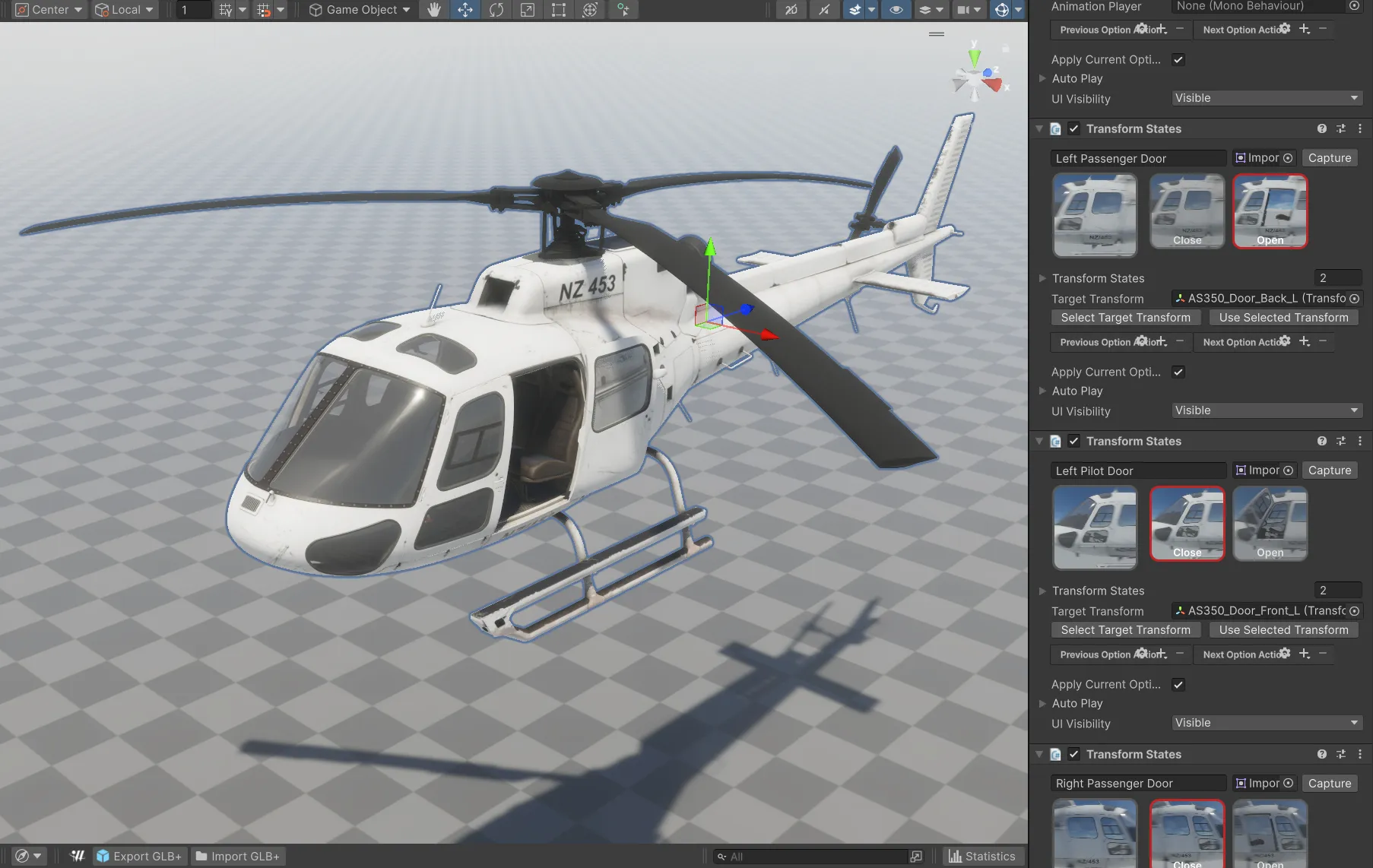
TransformStates |
Applies local position and rotation options to a target transform. |
CameraStates |
Moves a target camera relative to a reference transform and can apply field of view or projection settings. |
AnimationStates |
Plays legacy Animation clips or a compatible glTF animation player by animation index. |
GroupStates |
Coordinates multiple Model Vista States containers by selecting target options together. |
ShaderStates |
Applies float, Boolean keyword, vector, color, or HDR color values globally or to target materials. |
LightStates |
Applies EV100 intensity, color filter, and color temperature options to target lights. |
Use these components when the exported GLB should carry variant choices, presentation states, animation controls, shader values, or lighting choices into Model Vista and other compatible runtimes.
Shared Option Behavior
Section titled “Shared Option Behavior”Each configurable can include:
- Configurable Name: Human-readable state set name shown in tools and runtime UI.
- Thumbnail: Sprite shown for the state set in editors or runtime browsers.
- UI Visibility: Visible or Hidden for UI systems and the State Manager visibility filter.
- Current Option: The currently active state index.
- Previous / Next Option Actions: Input actions that cycle through options in play mode.
- Apply Current Option On Awake: Applies the selected option when the component awakens.
- Autoplay: Optional sequential or random playback with a configurable interval. Each option can include:
- Display Name: Human-readable state name shown in tools and runtime UI.
- Thumbnail: Sprite shown in editors or runtime state browsers.
- Transition Duration: Blend time for state changes where blending is supported.
- Ease Mode: Ease In Out or Linear interpolation.
- Trigger Action: Input action that switches to the option.
- Hold Action: Input action that temporarily blends to the option while held, then returns to the previous option when released.
- On Selected: UnityEvent invoked when the option becomes active. Transform options include Apply Position and Apply Rotation toggles. Camera options include Apply Position, Apply Rotation, Apply Field Of View, and Apply Projection toggles.
Group Transition Timing
Section titled “Group Transition Timing”GroupStates provides two timing modes:
- ParentGroupDuration uses the selected Group option’s transition duration and easing to drive all linked States together. This is the default.
- LinkedStateDurations starts all linked States together while preserving each linked option’s own transition duration.
The timing mode is preserved by GLB+ export and import. Older files without the field use ParentGroupDuration.
Model Vista is an INNOWORKS product.