
State Selector Sample
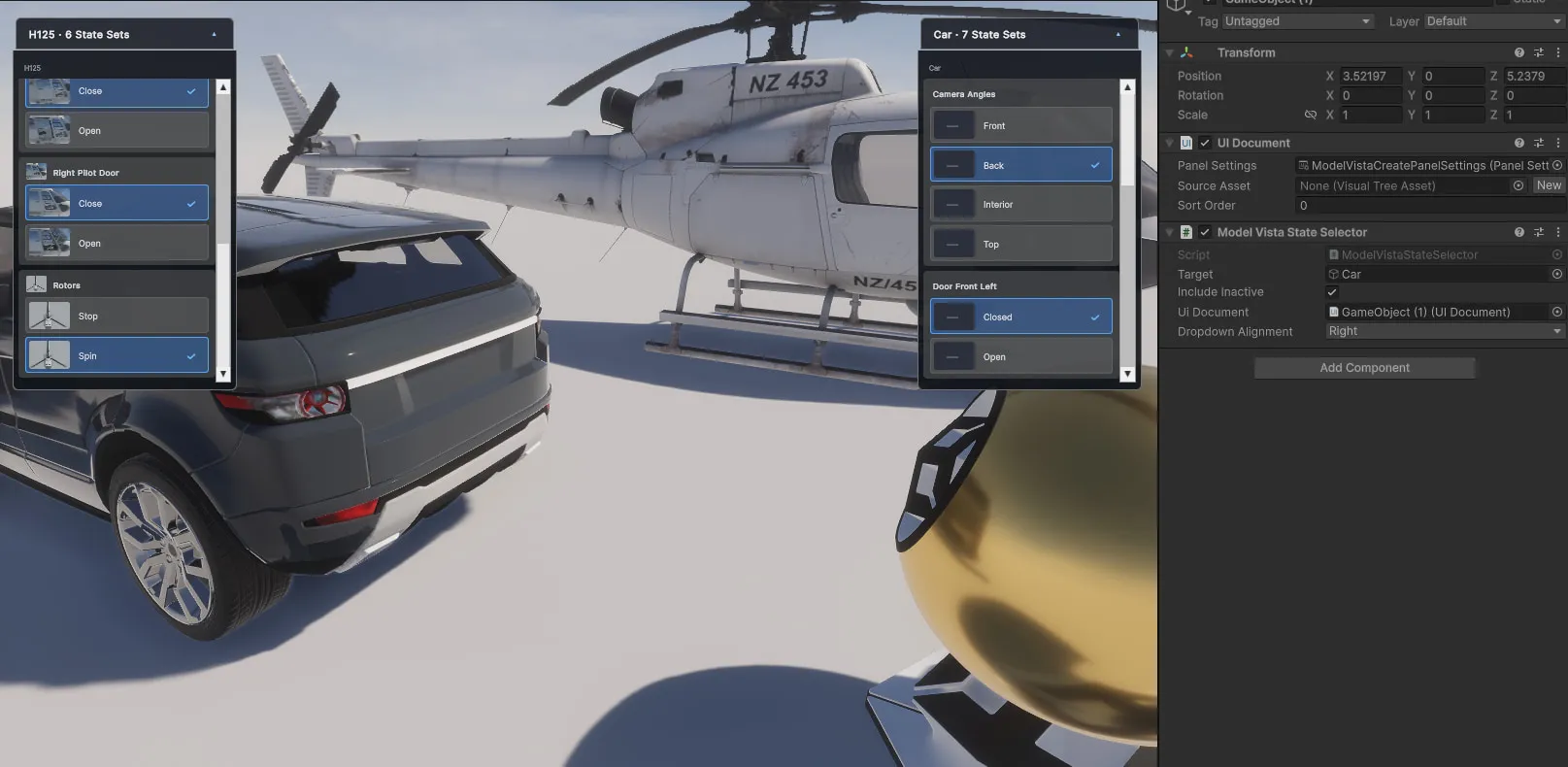
The optional State Selector sample adds a runtime UI for viewing Model Vista State Sets and selecting their options in Play mode. The selector uses the names and thumbnails configured on each State component, so you can test the same presentation data that is available to other Model Vista runtime interfaces.
Import The Sample
Section titled “Import The Sample”- Open Window > Package Management > Package Manager.
- Select Model Vista Create.
- Open the Samples tab.
- Select Import for the State Selector sample.
Configure A Selector
Section titled “Configure A Selector”- Add or select a GameObject with a
UI Documentcomponent. - On
UI Document, assign the sample’sModelVistaCreatePanelSettingsasset to Panel Settings. The Source Asset can remain empty when you use the layout generated by the sample. - Add the
Model Vista State Selectorcomponent. - Set Target to the root GameObject whose Model Vista State Sets you want to display.
- Enable Include Inactive when State components on inactive objects in the target hierarchy must also be available.
- Assign the hosting
UI Documentcomponent to UI Document. - Set Dropdown Alignment to position the expanded State Set controls for the available screen space.
- Enter Play mode and select an option to apply it to the target.
The selector header shows the target name and the number of available State Sets. Expand a State Set to view its options; a check mark identifies the currently selected option.
Control The Displayed Content
Section titled “Control The Displayed Content”The runtime panel uses the Model Vista State data configured on the target:
- Configurable Name supplies the State Set heading.
- Display Name supplies each option label.
- Thumbnail supplies the optional State Set or option image.
- UI Visibility controls whether a State Set is available to runtime UI.
To show separate panels for multiple models, configure a UI Document and Model Vista State Selector for each target. Use Dropdown Alignment and the UI Document’s Sort Order to keep the panels readable alongside other runtime UI.
