
Model Vista for Quest
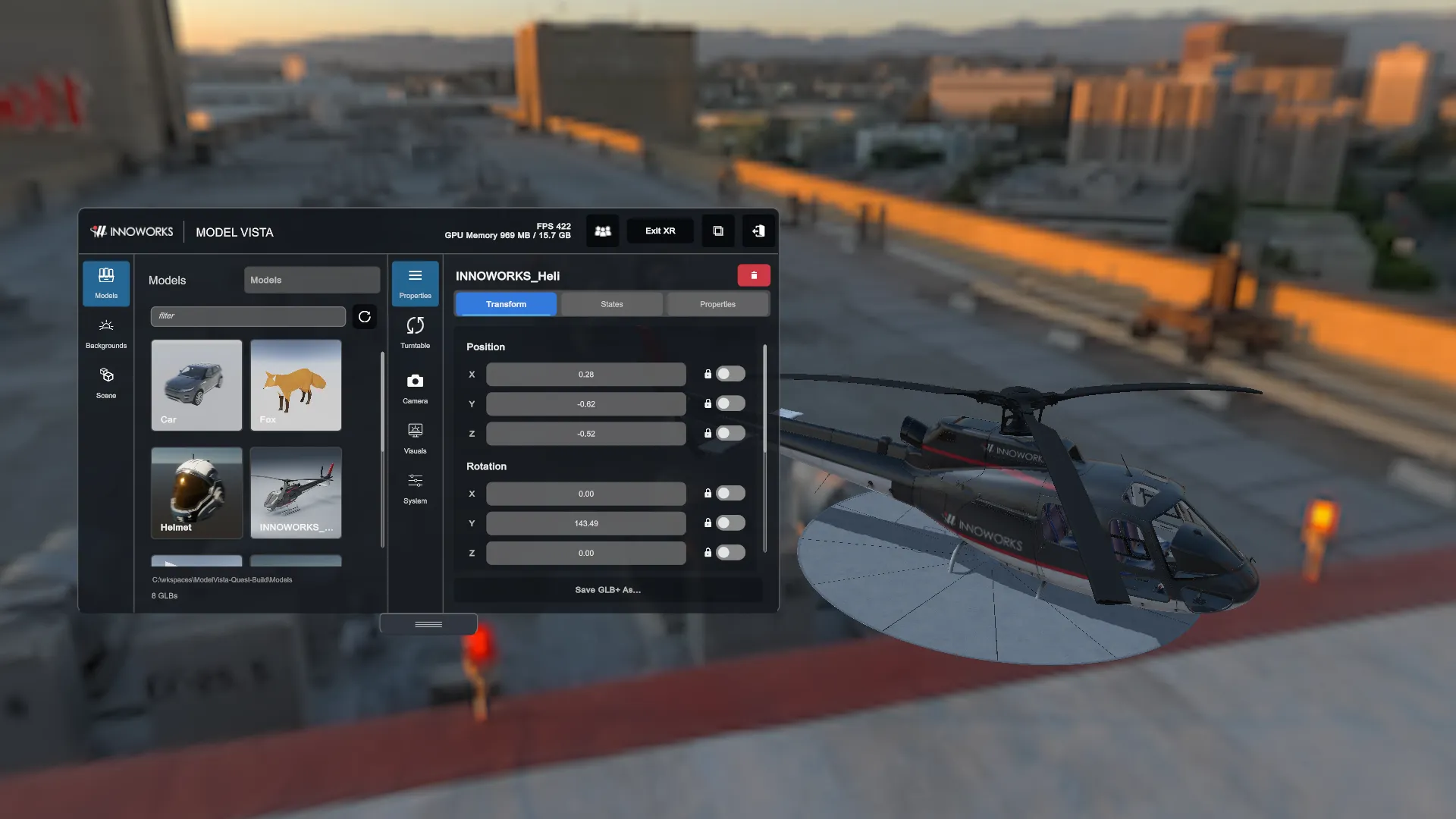
Model Vista for Quest 2.0.6 is an application for reviewing and configuring GLB models directly on a Meta Quest headset. The current target is the Quest 3 family. Native Quest always runs in XR and uses the Default interface.
Quick start
Section titled “Quick start”- Install Model Vista from the Meta store.
- Launch Model Vista and wait for startup and sample-library preparation.
- Open Models, choose Samples, select a GLB tile, and confirm the load dialog.
- Open Scene, select the loaded model, and use Properties to inspect Transform, States, or Properties.
- Use the controller ray to operate the floating panels. Click the right thumbstick to show or hide the menu.
- Choose a background under Backgrounds, or enable passthrough to review the model in your room.
- Save a named scene from the Scene footer when you want to return to the layout.
Start with a small model and check its scale and position before loading larger content.
Guide contents
Section titled “Guide contents”Model Vista is an INNOWORKS product.