
Use backgrounds and passthrough
Use Backgrounds for a virtual environment and XR Passthrough for the headset’s room view.
Choose a background
Section titled “Choose a background”- Open Backgrounds and select a configured library.
- Select an HDR image or GLB environment and confirm the load dialog.
- Adjust the available sky exposure, rotation, Sun, clouds, or fog controls as needed.
- Inspect the result with a representative model before saving the scene.
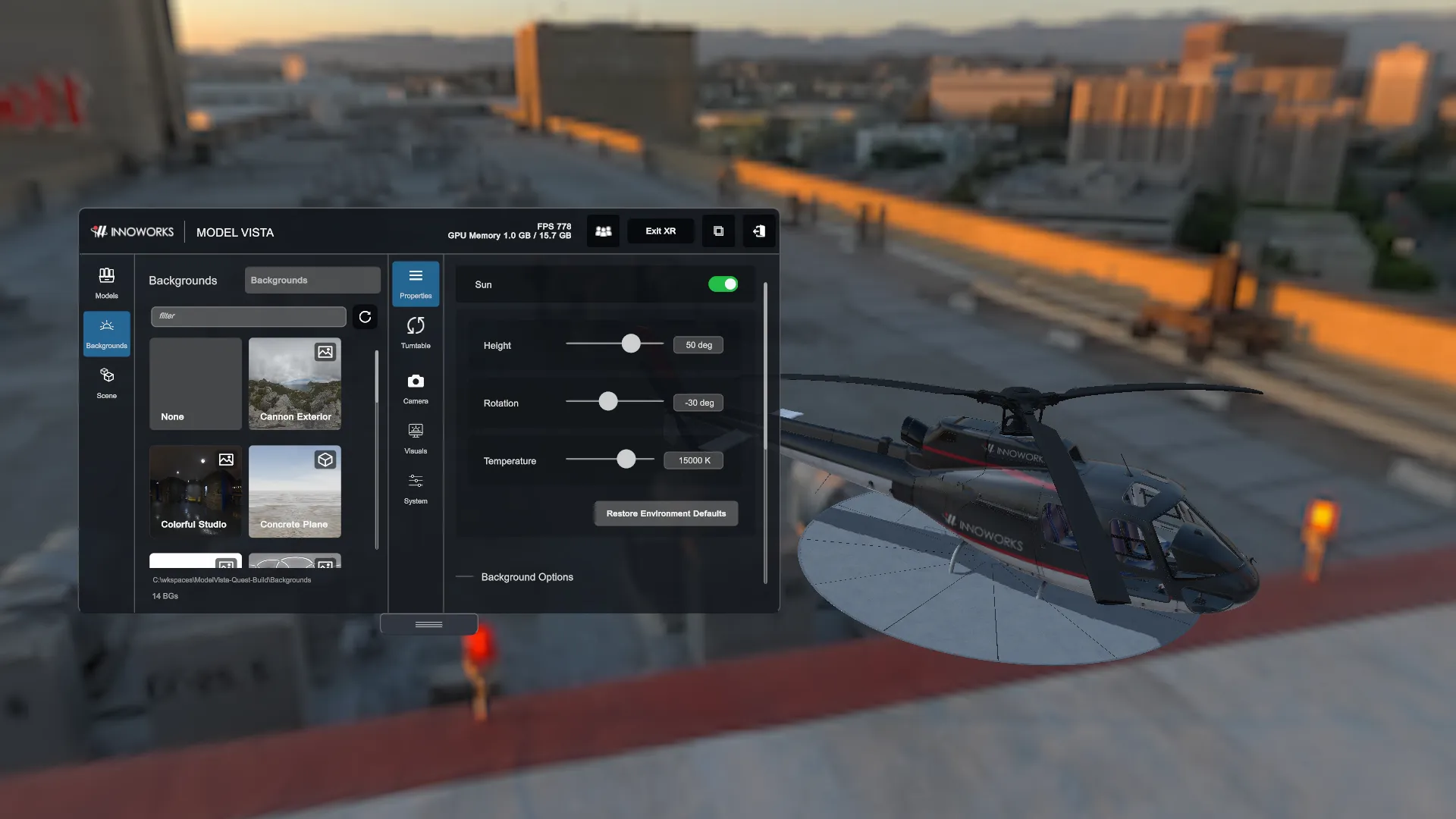
A GLB background can have a linked HDR Background; an HDR entry can have a linked Model Background. Choosing a companion keeps the primary entry selected. Companion links do not chain. If a linked HDR is missing, the model background can still load with procedural sky and report the unavailable HDR.
Review with passthrough
Section titled “Review with passthrough”- Open the XR Passthrough settings section and enable passthrough.
- Grant any spatial-data access requested by the headset when you want tracked-plane alignment or shadows.
- Recheck model height and room alignment.
- Adjust Passthrough Shadow Opacity when available.
- Use Passthrough Hand Occlusion to mask virtual objects with tracked hand meshes.
Hand occlusion approximates the local hands. It does not provide environment-depth occlusion for furniture, people, or other moving objects. Plane shadows and spatial-data behavior require native headset review.
If spatial data is unavailable, the app can display an information dialog. Do Not Show Again disables Show XR Spatial Data Warning; it does not grant the missing permission or restore tracking.
