
Inspect models and States
Use a GLB prepared for the headset. The native Quest application does not provide licensed CAD/source-format import.
Load and select a model
Section titled “Load and select a model”- Open Models and choose a library.
- Select a GLB tile and confirm the load dialog.
- Wait for loading to finish before starting another operation.
- Open Scene and select the model instance.
- Open Properties and choose the required tab.
| Tab | Use |
|---|---|
| Transform | Adjust the model instance’s position, rotation, and scale. |
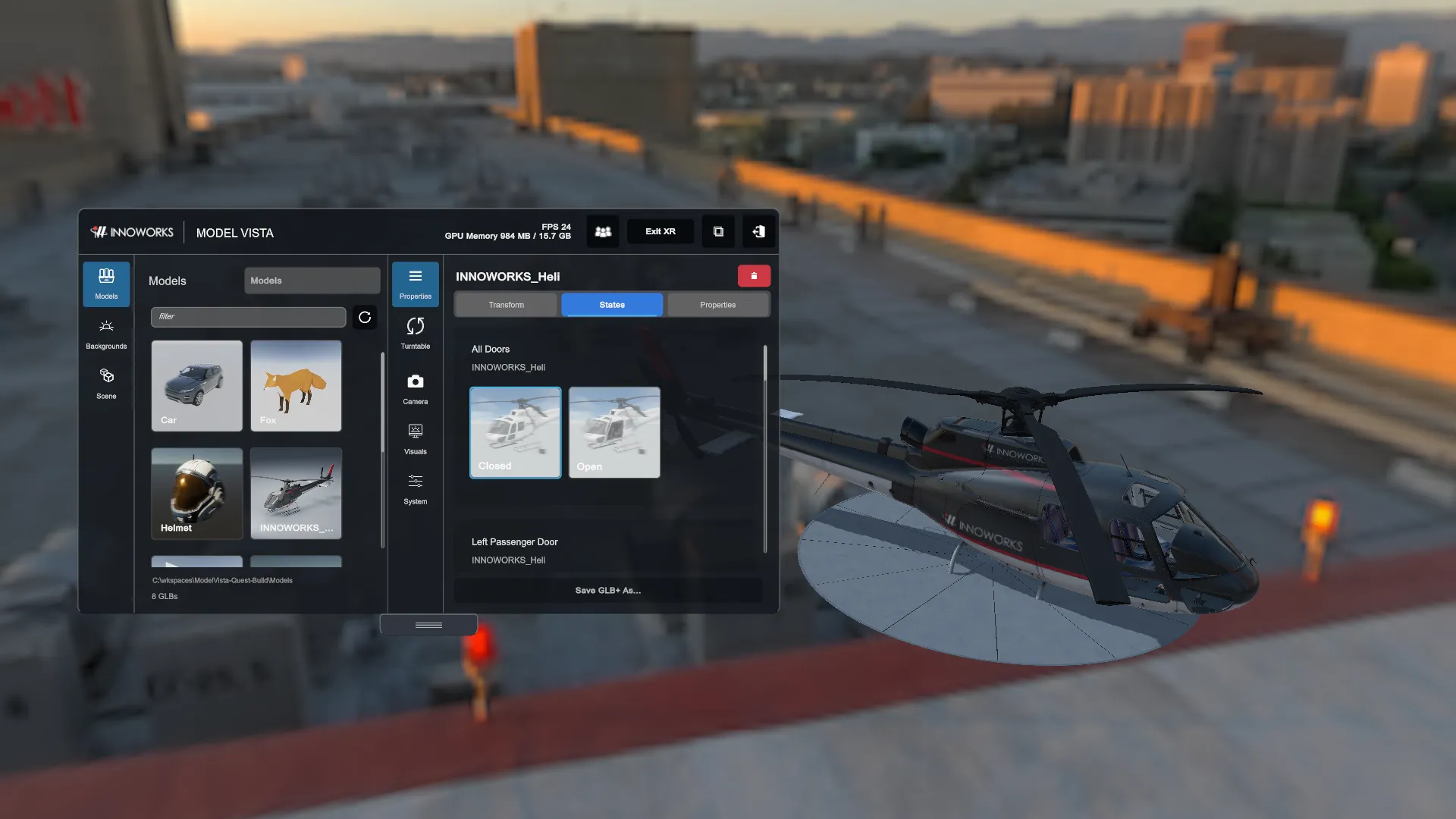
| States | Apply the configuration options authored into the GLB+. |
| Properties | Inspect model metadata, geometry and texture statistics, and texture-quality controls. |
A standard GLB can render without Model Vista States. State controls appear only when supported configuration data exists in the asset. Applying a State previews an authored choice; it does not create a new State set.
Interaction and colliders
Section titled “Interaction and colliders”Models begin with box colliders for interaction. Generate complex colliders only when the interaction needs more precise geometry. Collider generation can take time and use additional memory on a headset. Test with one model before increasing the scene size.
Use XR grabbing or the Transform fields to position content. Remove unused model instances to reduce rendering and memory cost.
Check the result
Section titled “Check the result”Inspect transparent surfaces, embedded textures, and State transitions on the actual headset. URP rendering can differ from desktop HDRP materials. Missing licensed features are not resolved by loading a model made on another platform.
Save the layout using scene files. Scene saves reference the original asset and selected State options; they are not a model export.
