
Adjust Quest settings
Choose graphics settings while viewing a representative model. Confirm clarity and performance on the native headset; Editor frame rates do not describe Quest performance.
Render quality and resolution
Section titled “Render quality and resolution”Open Settings > Render Quality to adjust resolution.
| Setting | Behavior |
|---|---|
| Resolution Mode | Manual or Automatic when supported by the active native XR runtime. |
| Render Scale | Manual 75–150%; defaults to 100%. Higher values increase GPU cost. |
Automatic resolution requires native Quest XR, Vulkan, URP Render Graph, and runtime support. If unavailable, use Manual. Finish dragging the Render Scale slider before evaluating the result; resolution is committed after the interaction.
Texture quality
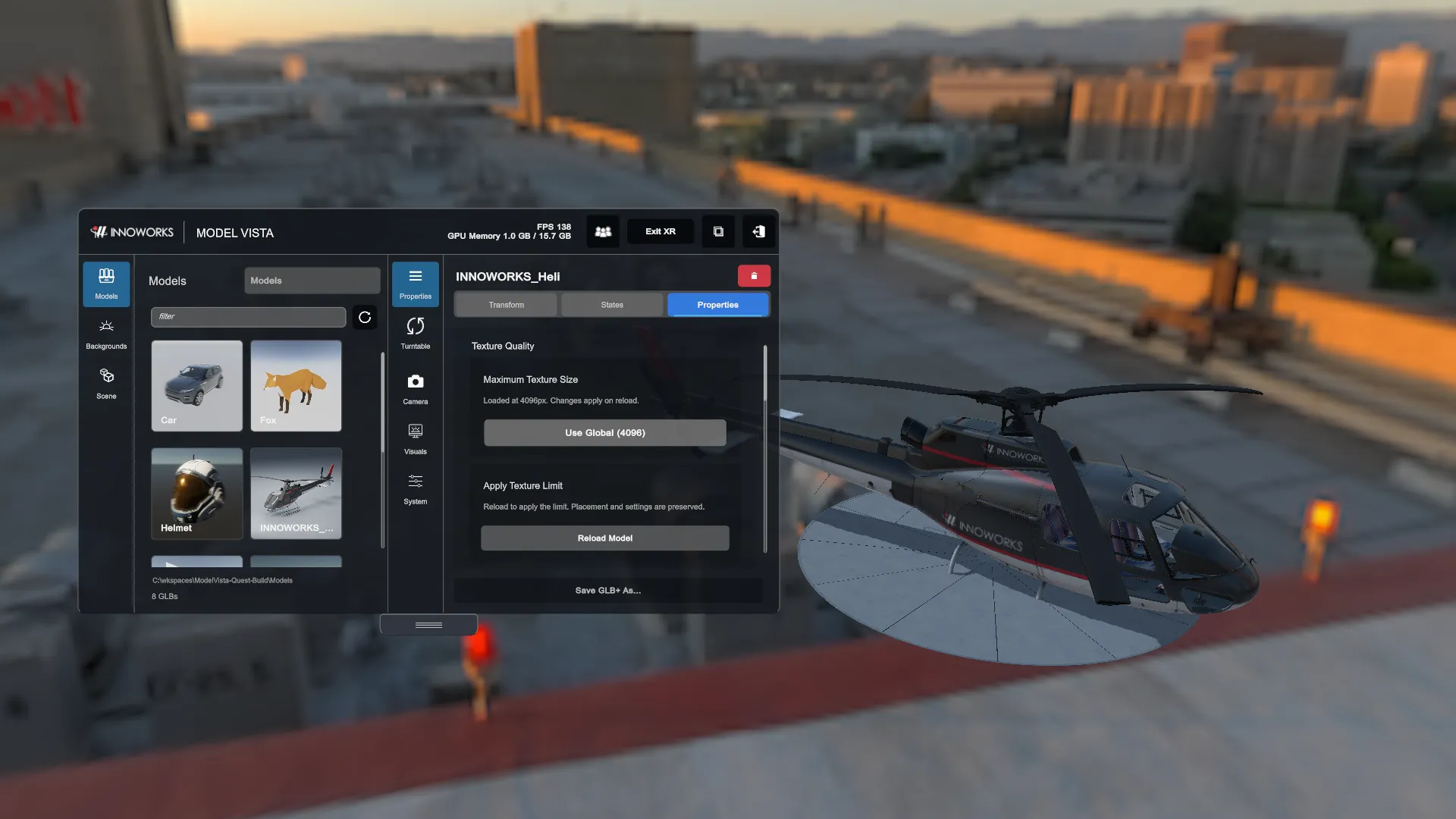
Section titled “Texture quality”Select the model in Scene, then open Properties > Properties. Inspect Maximum Texture Size and the model’s texture statistics. A changed texture limit applies when the model reloads; use Reload Model to apply it while retaining placement and settings.
XR options
Section titled “XR options”Passthrough Hand Occlusion defaults on. Application SpaceWarp is experimental and defaults off. Its availability depends on the graphics configuration and negotiated XR support. Check transparent models and floating UI before using it in a review. Experimental foveation controls may be unavailable in builds without their required support.
Quest hides desktop HDRP upscalers and screen-space ambient occlusion controls. The native interface also hides desktop camera move-speed and layout selectors.
Recover a usable configuration
Section titled “Recover a usable configuration”Unload unused models, reduce model complexity or Render Scale, and compare with the bundled samples. Treat memory readouts as diagnostic indicators, not a guaranteed maximum model size. Opening a saved scene can temporarily hold both old and new content.
Reset Default applies to the selected settings category. Read its confirmation; Libraries has additional sample-restoration consequences described in model libraries.
