
Find the main controls
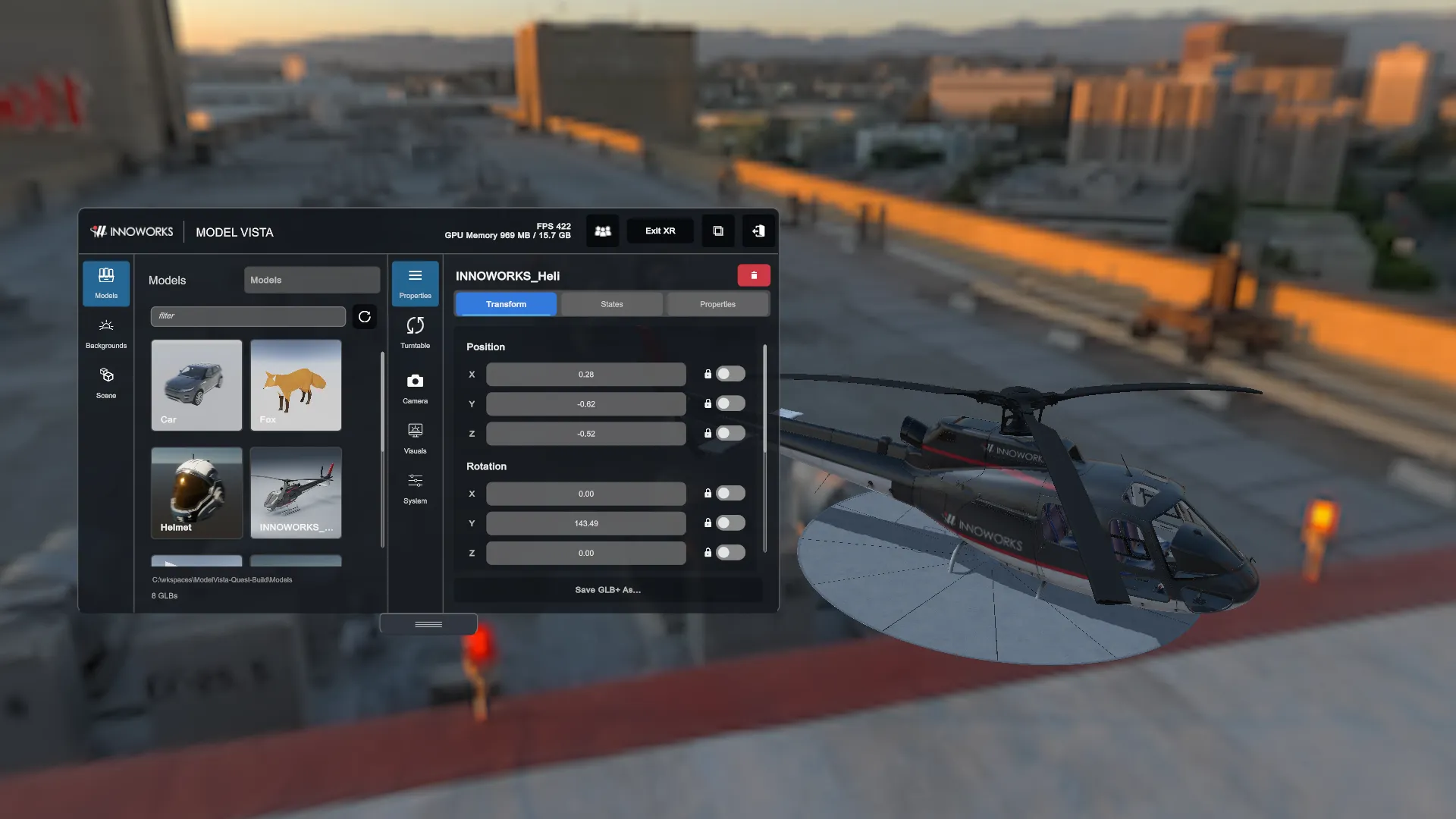
Native Quest uses the Default split-panel interface. The Interface Design selector is hidden on the headset. Editor captures can show desktop controls that are absent on native Quest.
| Control | Use |
|---|---|
| Models | Choose a library and load GLB content. |
| Backgrounds | Choose an HDR or GLB background. |
| Scene | Select loaded model instances and access scene files. |
| Properties | Inspect the selected model using Transform, States, and Properties. |
| Camera | Access the camera controls available to the active runtime. |
| Visuals | Adjust rendering and environment options available on Quest. |
| System | Access application settings, including libraries and external connections. |
The guide uses settings category names such as Settings > Libraries. In the Default interface, select System or Visuals to reach the corresponding settings panel.
Operate the panels
Section titled “Operate the panels”- Point a tracked controller ray at a control.
- Select the control and wait for the requested operation to finish.
- Use Hide on a panel to collapse it.
- Click the right thumbstick to hide or show the menu.
Use the headset keyboard when a scene-name or missing-asset text field requests input. Confirm the keyboard text before completing the dialog.
Model names, library names, and filenames identify your content. Switching the application language does not rename those files or authored State options.
Model Vista is an INNOWORKS product.