
Camera and visuals
Set the camera
Section titled “Set the camera”Open Camera on the right rail.
- Choose Perspective for a natural depth effect, then adjust Field of view.
- Choose Orthographic for an undistorted technical view, then adjust Orthographic size.
- Select Frame selected model to recenter the camera on the active model.
Camera States embedded in a compatible Model Vista asset can also drive the viewer camera when you apply them under Properties > States.
Adjust the environment
Section titled “Adjust the environment”Open Visuals to control the presentation independently of the model data.
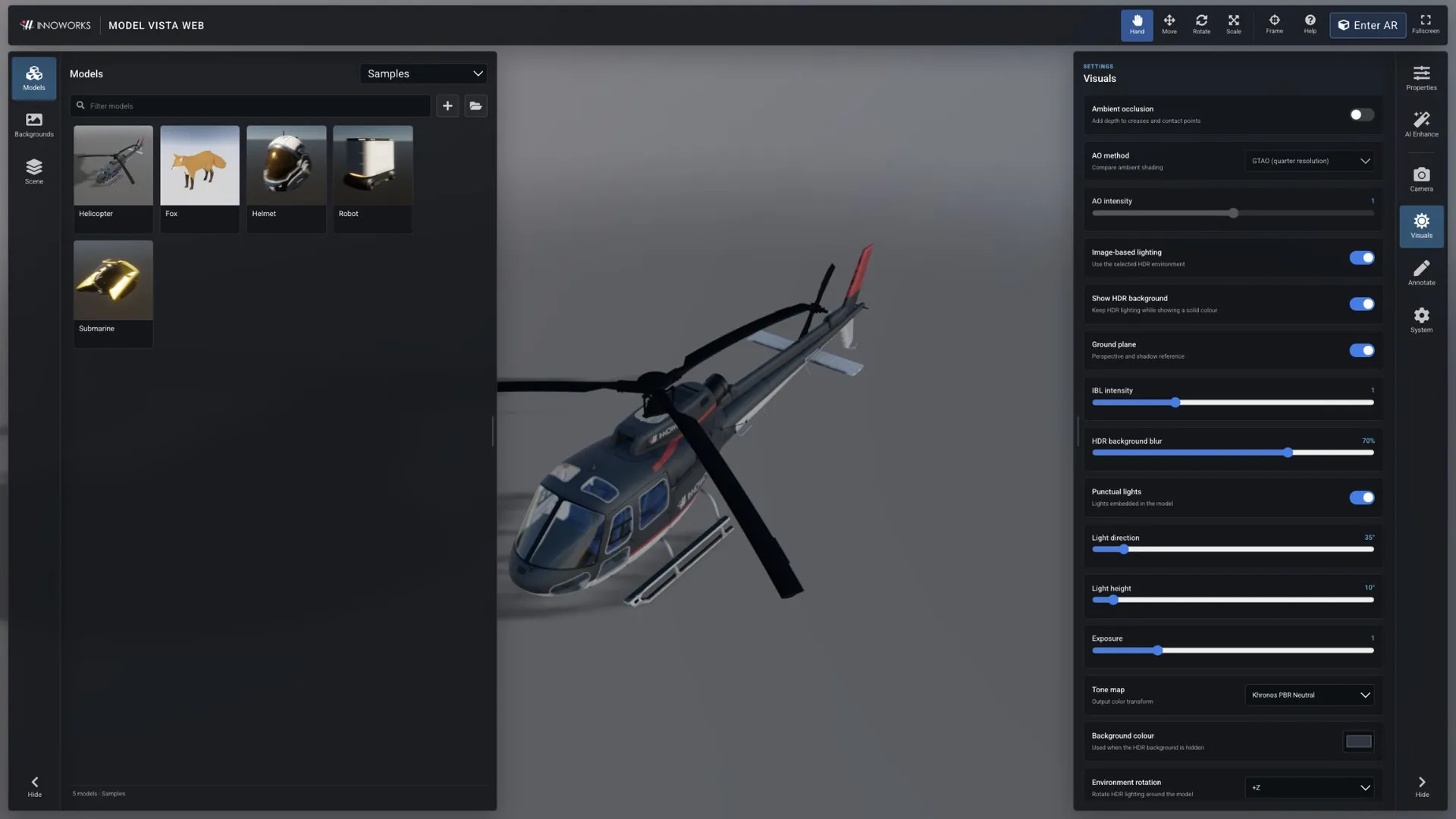
| Control | Effect |
|---|---|
| Image-based lighting | Lights the scene from the selected HDR environment. |
| Show HDR background | Displays the HDR image behind the model. Turn it off to keep HDR lighting over a solid color. |
| Ground plane | Shows a perspective and shadow reference beneath the model. |
| IBL intensity | Changes the strength of environment lighting. |
| HDR background blur | Blurs only the displayed environment background. |
| Punctual lights | Enables lights embedded in the model. |
| Light direction / Light height | Aims the viewer’s directional light. |
| Exposure | Brightens or darkens the rendered result. |
| Tone map | Selects the output color transform, including Khronos PBR Neutral and ACES variants. |
| Background colour | Sets the solid background used when Show HDR background is off. |
| Environment rotation | Rotates the HDR lighting around the model. |
| Ground-plane height | Moves the ground reference up or down. |
Viewer presentation settings are saved automatically in the current browser. Use System > Reset viewer settings to restore the defaults.
Adjust ambient occlusion
Section titled “Adjust ambient occlusion”Ambient occlusion adds shading around creases and contact points. It is off by default. In Visuals:
- Enable Ambient occlusion.
- Choose AO method: GTAO (half resolution), GTAO (quarter resolution), SSAO (basic), or N8AO (performance). The default selection is GTAO (quarter resolution).
- Adjust AO intensity from
0to2; the default is1. - Compare the appearance and responsiveness on the device your audience will use. Turn AO off if it is not needed.
The method and intensity controls are disabled while AO is off. These are full-viewer settings; the embed playground does not expose AO controls.
Keep a model above the ground
Section titled “Keep a model above the ground”If geometry intersects the ground plane, raise the model with Properties > Transform > Position Y. Adjust the value for the loaded model and frame it again; do not reuse placement values from a different sample.
