
Models, States, and analysis
Load local content
Section titled “Load local content”Drag a .glb, .gltf, .fbx, or .hdr file onto the viewer, or use the controls in Models and Backgrounds.
For a self-contained .glb or .fbx, select the main file. For .gltf content with separate buffers or textures, select the main .gltf and its dependent files together. Model Vista Web keeps locally opened files in the browser; opening a model does not upload it.
To reuse a folder across sessions, add it as a local library.
Arrange a scene
Section titled “Arrange a scene”- Add one or more models from Models.
- Open Scene and select the model to edit.
- Choose Hand, Move, Rotate, or Scale in the top toolbar.
- Drag the model or its colored axis gizmo. For precise values, use Properties > Transform.
- Select Frame selected or press
Fafter a large move.
The Transform fields use X, Y, and Z values for position, rotation in degrees, and scale. Scale values must be greater than zero.
Apply Model Vista States
Section titled “Apply Model Vista States”Open Properties > States. Each compatible States entry appears as a named card with its available options. Select an option to apply it immediately.
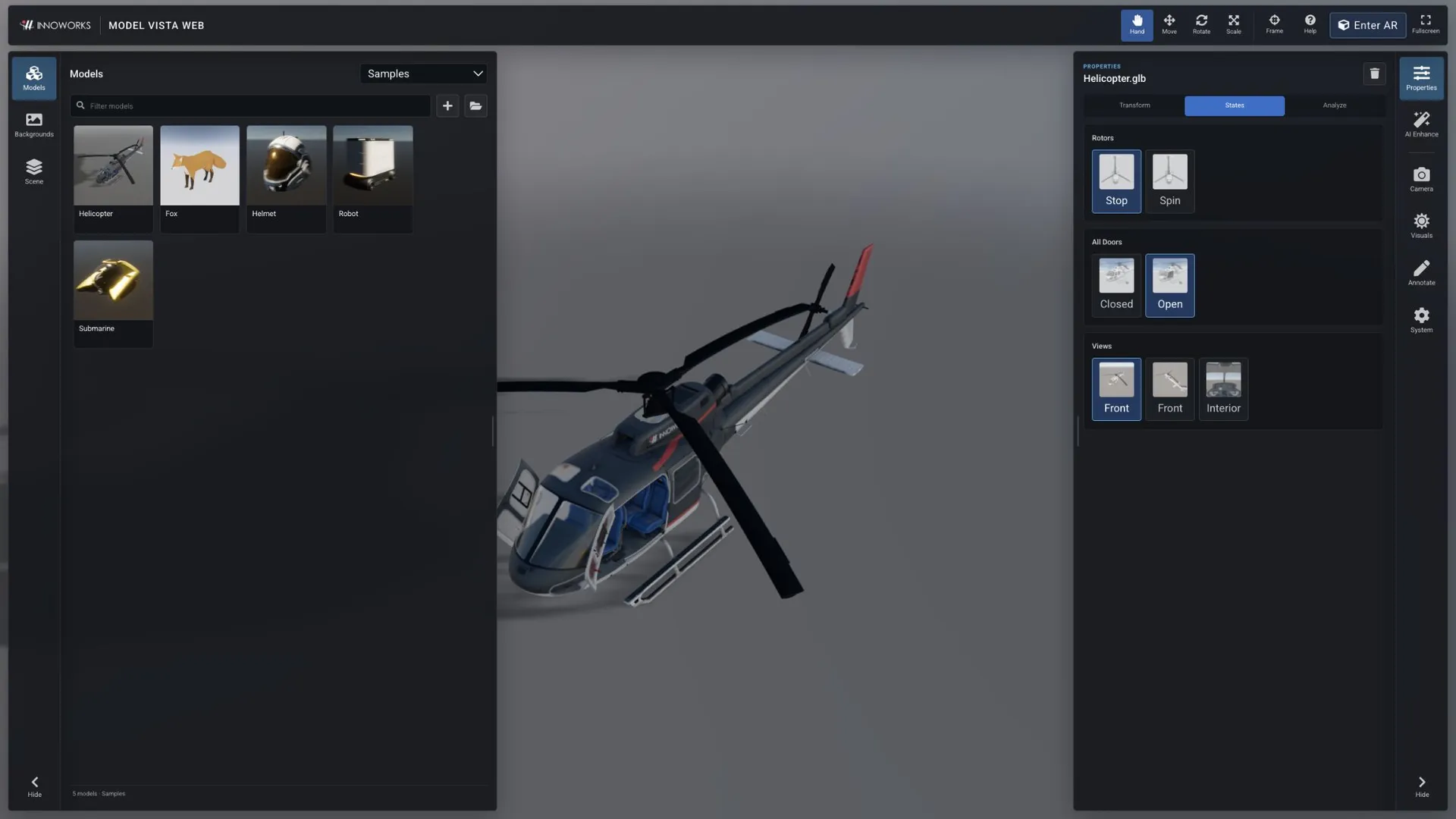
The Web viewer supports Model Vista Create schema versions 1 and 2, including material, activation, shader, transform, camera, light, group, and animation States. It also supports time-, distance-, and angle-based transform transitions, linked and grouped States, material and light blending, and animation crossfades.
Standard glTF material variants appear under Material variants when the model provides more than one variant.
When a local or URL model has a matching version-2 *.modelvista-turntable-offsets.json sidecar, the viewer applies its presentation position and rotation offsets.
Analyze a model
Section titled “Analyze a model”Open Properties > Analyze to review:
- mesh and triangle counts;
- glTF Validator error, warning, and information counts;
- asset generator and copyright metadata;
- the full validation report;
- detailed renderer statistics.
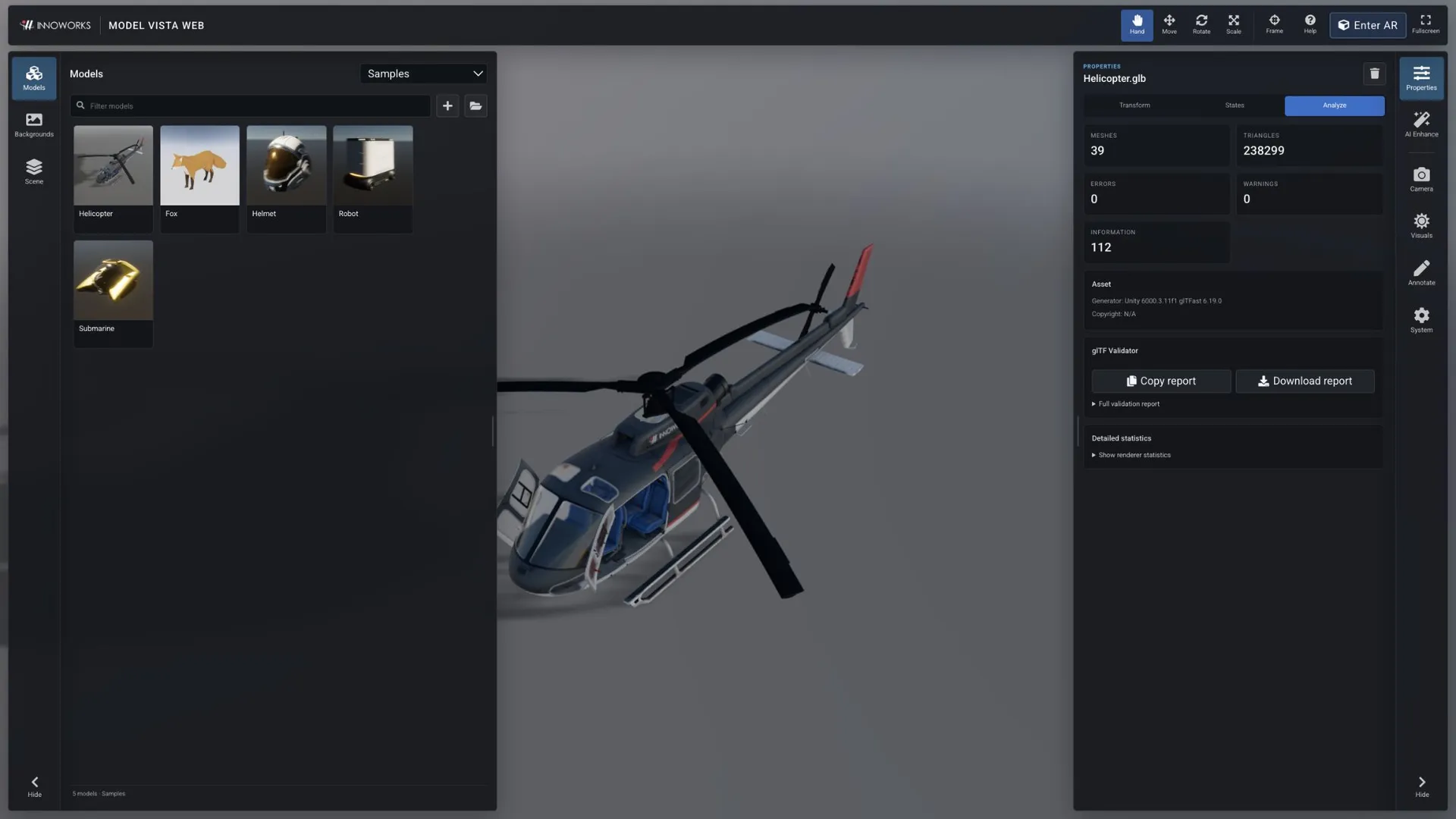
Use Copy report to copy the validator JSON or Download report to save it as <model-name>.report.json. Validation information can describe supported extensions and normal asset details; prioritize errors first, then warnings.
