
Local libraries and settings
Local libraries make a folder of models or HDR backgrounds available from the library selector without uploading the files.
Add a model library
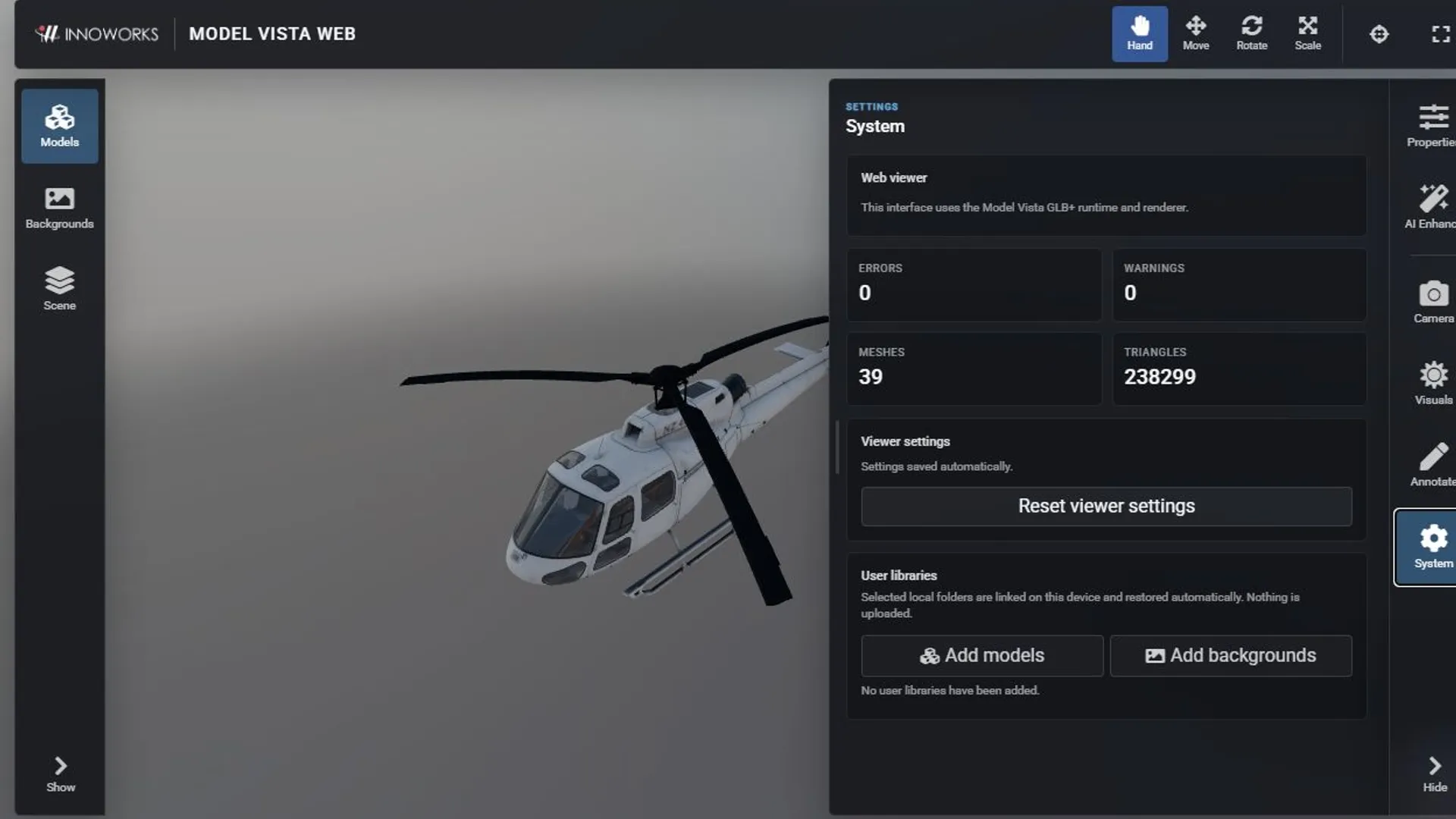
Section titled “Add a model library”- Open System.
- Under User libraries, select Add models.
- Read the local access explanation, then select Continue to folder selection.
- Choose the folder that contains the models and grant read access if the browser asks.
- Return to Models and choose the new library from Model library.
The library can contain .glb, .gltf, and .fbx assets and their dependent files. When available, Model Vista Web uses packaged or adjacent thumbnails to populate the library cards.
Add a background library
Section titled “Add a background library”Follow the same procedure with Add backgrounds, then choose the new entry from Background library. Background libraries use .hdr assets and available preview images.
How local storage works
Section titled “How local storage works”- In browsers that support persistent directory access, Model Vista Web stores a read-only folder link on the current device and may ask you to reconnect it later.
- In other browsers, it stores a browser-local copy so the library can be restored.
- The viewer does not upload a linked library, modify the source files, or delete the originals.
- Renaming or removing a library changes only the entry in Model Vista Web. Removing it does not delete the source folder.
Use the reconnect action in System > User libraries if a linked folder loses permission.
Saved viewer preferences
Section titled “Saved viewer preferences”Model Vista Web automatically saves presentation and interface preferences in the browser, including panel layout, transform mode, selected libraries and environment, camera projection, lighting, exposure, tone mapping, ground plane, and background settings.
Select System > Reset viewer settings to restore default preferences. This does not delete your original model or background files.
