
Quick start
Model Vista Web runs in a WebGL 2.0-capable browser and does not require a desktop installation.
Start with Helicopter
Section titled “Start with Helicopter”- Open Model Vista Web. The bundled Helicopter loads automatically; wait for the loading indicator to finish.
- Select Models on the left rail to open the sample library. Side panels start closed in a fresh session.
- Select Properties > Transform on the right rail to inspect the selected
Helicopter.glb. - Select Frame selected or press
Fto fit the model in the view. - Open Properties > States. Try Rotors > Spin, All Doors > Open, or a Views option. Use Stop and Closed to return the rotor and doors to their initial options.
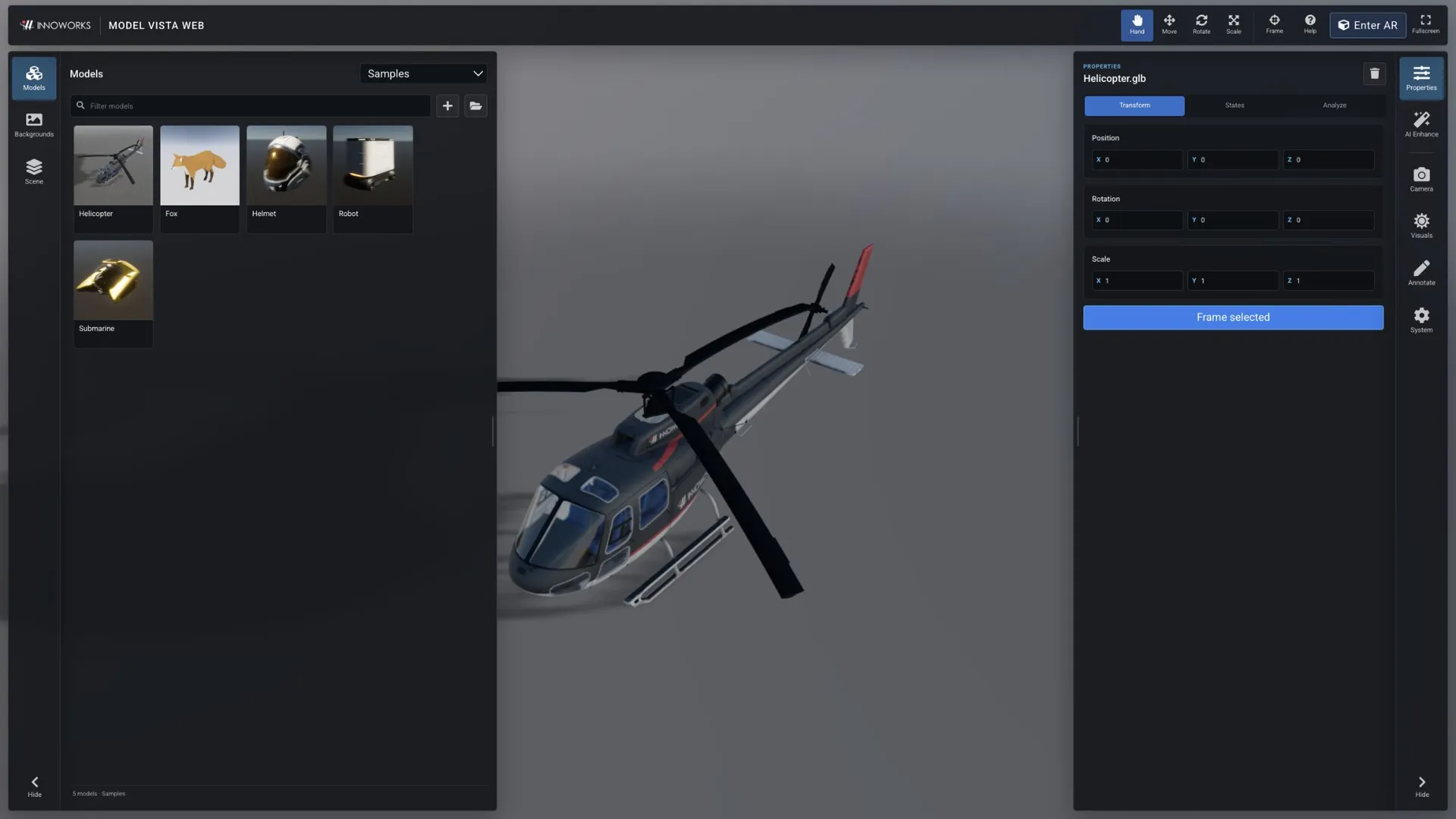
To add another sample, leave Model library set to Samples and select a model card. This adds a model; it does not replace the current scene. Selecting Helicopter again adds another copy. Use Scene to select, frame, remove, or clear loaded models.
If a model intersects the ground plane, adjust Properties > Transform > Position Y until it sits above the ground. Choose the rotation for your presentation and select Frame selected again.
Choose a background
Section titled “Choose a background”- Select Backgrounds on the left rail.
- Leave Background library set to Environments.
- Select an environment card, such as Helipad Goldenhour.
- Open Visuals to adjust Show HDR background, HDR background blur, and Environment rotation.
Navigate the view
Section titled “Navigate the view”- Drag to orbit the camera.
- Hold
Shiftwhile dragging, or drag with the middle mouse button, to pan. - Scroll, or drag with the right mouse button, to zoom.
- Press
Fto frame the selected model.
The transform toolbar changes how pointer drags affect the selected model. Press Q for Hand, W for Move, E for Rotate, or R for Scale.
Model Vista is an INNOWORKS product.