
Embed a model on your website
Use Model Vista Lite to place an interactive model in your own web page. Customers can rotate the model and choose its authored Model Vista States. Your page needs one iframe; no JavaScript SDK or viewer dependencies are required on your website.
Try the playground
Section titled “Try the playground”- Open the Embed playground.
- Keep Model set to Helicopter to try a GLB+ configurator. Select Rotors, All Doors, or Views, then choose an option.
- To test a model from another host, select Try an external model, then Apply model. This fills and loads the Khronos Damaged Helmet URL. It is a standard GLB with no Model Vista States, so it demonstrates the canvas without a configuration menu. The playground links to its source and license.
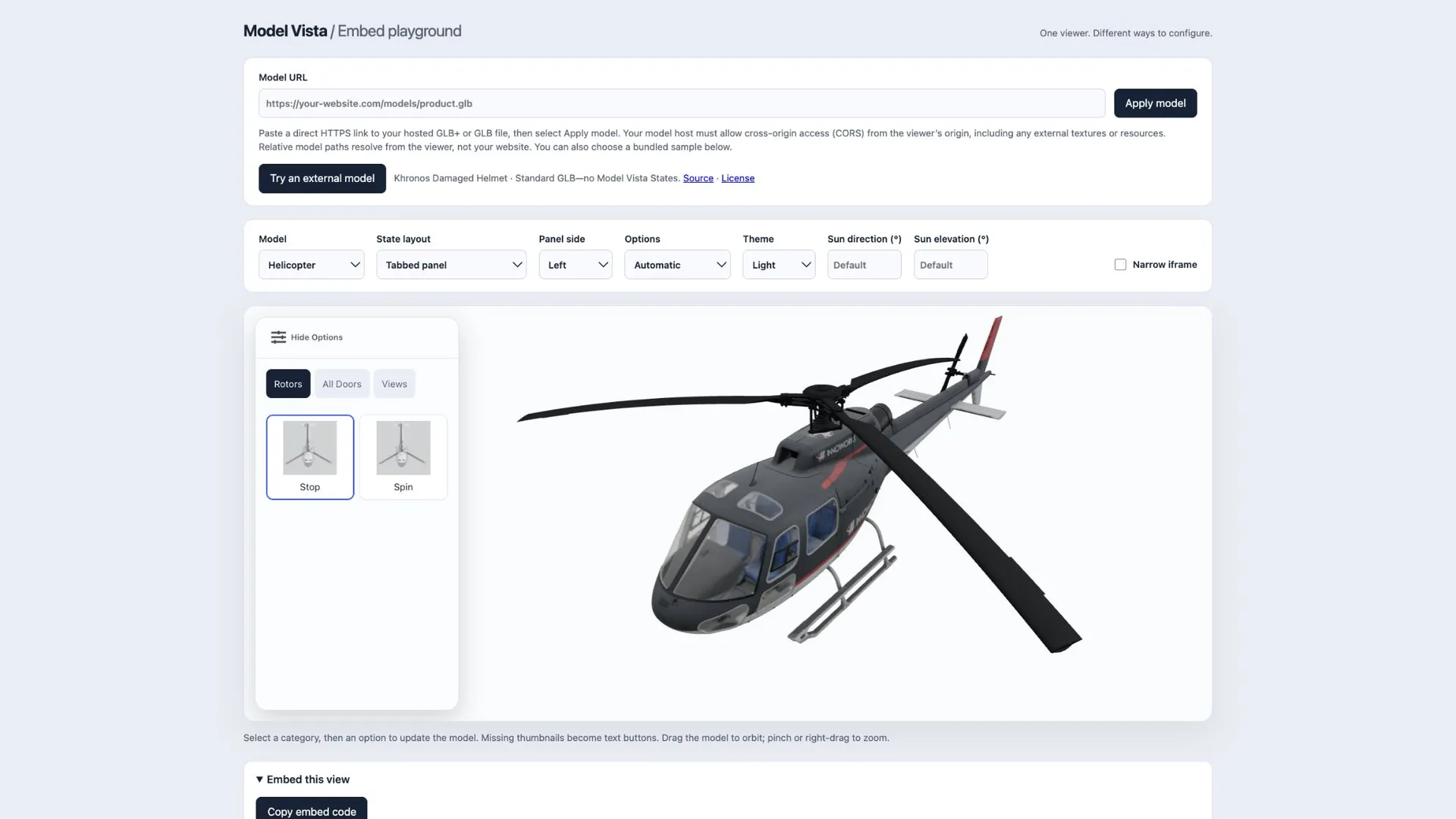
The playground controls change the embed presentation. State choices inside the preview demonstrate the model; they are not saved into the generated iframe. A new embed loads the model’s authored initial selections.
Host and load your model
Section titled “Host and load your model”- Export a GLB+ containing the States you want customers to use. A standard GLB also works, but it does not acquire Model Vista States simply by being embedded.
- Host the file at a direct HTTPS URL that visitors can access. Use the actual model file URL, not a file-sharing preview page. If the model references external textures or buffers, host those too.
- Configure the model host to allow cross-origin resource sharing (CORS) from
https://modelvista.inno-works.com. The same requirement applies to external model resources. If you host the viewer yourself, allow that viewer’s origin instead of the customer page’s origin. - Paste the complete URL into Model URL and select Apply model. Query parameters are encoded automatically. The field accepts complete HTTPS URLs without embedded usernames or passwords.
- Wait for the preview to load. Rotate the model and test its options before copying the code.
Editing the field does not change the preview or code until you select Apply model. Choose a bundled sample from Model to switch back. This workflow references your hosted file; it does not upload it to Model Vista.
Style the menu and view
Section titled “Style the menu and view”| Control | What it changes |
|---|---|
| State layout | Tabbed panel overlays a category panel; Below viewer · original places the options below the canvas. |
| Panel side | Places a tabbed panel on the left or right. It is disabled for the below-viewer layout. |
| Options | Automatic and Thumbnails use available thumbnails with text fallback; Text buttons uses labels. |
| Theme | Light or Dark styles the controls and default background. |
| Sun direction (°) | Sets the built-in light’s azimuth from 0 to 360. |
| Sun elevation (°) | Sets its elevation from -90 to 90. Leave either sun field empty to use its default. |
| Narrow iframe | Tests a narrow preview. This changes only the preview width, not the generated code. |
Use Helicopter to see menu styling. Models without exposed States show only the canvas. Missing or failed thumbnails become text buttons. At iframe widths of 640px or less, the tabbed panel moves to the bottom. Visitors can use Hide Options to collapse it. Category tabs support arrow keys, Home, and End.
Copy the iframe into your page
Section titled “Copy the iframe into your page”- Under Embed this view, select Copy embed code. If automatic copying is unavailable, select and copy the displayed code manually.
- Paste it into your page’s HTML or your website builder’s custom HTML/embed block.
- Adjust the iframe height for your layout; keep
width:100%for a responsive width. Set a descriptivetitlefor the model. - Test the actual customer page on desktop and a touchscreen, including narrow widths and model loading.
This example uses the bundled Helicopter with a dark panel:
<iframe src="https://modelvista.inno-works.com/embed.html?model=./assets/InnoWorks/Models/Helicopter/glTF-Binary/Helicopter.glb&statesLayout=panel&statesSide=left&statesStyle=auto&theme=dark" title="Interactive helicopter configurator" loading="lazy" style="width:100%;height:620px;border:0"></iframe>Use the playground to generate code for your own model. Relative model paths in an iframe URL resolve against the viewer page, not your customer page. A self-hosted viewer must permit iframe embedding; its response headers must not block the customer site with X-Frame-Options or CSP frame-ancestors. The customer site’s CSP must also permit the viewer in frame-src if that directive is used.
Navigate an embedded model
Section titled “Navigate an embedded model”- Drag to orbit; Shift-drag or middle-drag to pan.
- Right-drag to zoom. The mouse wheel scrolls the surrounding web page.
- On touchscreens, use one finger to orbit and two fingers to pan and pinch to zoom.
The embedded interface has no upload controls, model picker, editing tools, login, or AI Enhance. The surrounding playground controls are not included in the iframe. The interface is simplified, but it currently shares the full viewer’s rendering bundle; model size and device performance still affect loading and responsiveness.
Optional URL settings
Section titled “Optional URL settings”The playground writes the menu, theme, and sunlight settings into the URL. You can also add these background parameters manually:
| Parameter | Value |
|---|---|
hdr |
URL of a Radiance .hdr environment. External hosts need CORS. |
blur |
HDR background blur, 0–100; default 70. |
background |
Six-digit hex color, such as f3f5f9. With hdr, keeps HDR lighting over a solid background. |
Without explicit menu parameters, embed.html defaults to statesLayout=below, statesSide=left, and statesStyle=text. The playground starts with a tabbed panel and automatic thumbnails. The default theme is light; an explicit background color overrides the theme’s background.
Troubleshoot loading
Section titled “Troubleshoot loading”| Symptom | Check |
|---|---|
| URL validation message | Enter a complete HTTPS URL without a username or password. |
| “Unable to load this model” | Check the direct URL, access permissions, CORS on the model and resources, and whether the file is a valid supported model. Expired or sign-in-only links will not work for visitors. |
| Viewer is blocked or blank on your site | Check your HTML/embed block and the customer and viewer hosting headers described above. |
| No configuration menu | Verify that the GLB+ exports exposed Model Vista States. Standard models such as Damaged Helmet have none. |
| Code still uses the old model | Select Apply model after editing the URL, then copy the code again. |
| Wheel does not zoom | This is intentional for scrolling the host page. Use right-drag or pinch to zoom. |
For broader format limitations, see Compatibility and troubleshooting.
