
Model Vista for Windows
Model Vista 2.0.4 is a desktop and XR application for loading, configuring, presenting, and collaboratively reviewing GLB content.
Quick Start
Section titled “Quick Start”- Launch Model Vista.
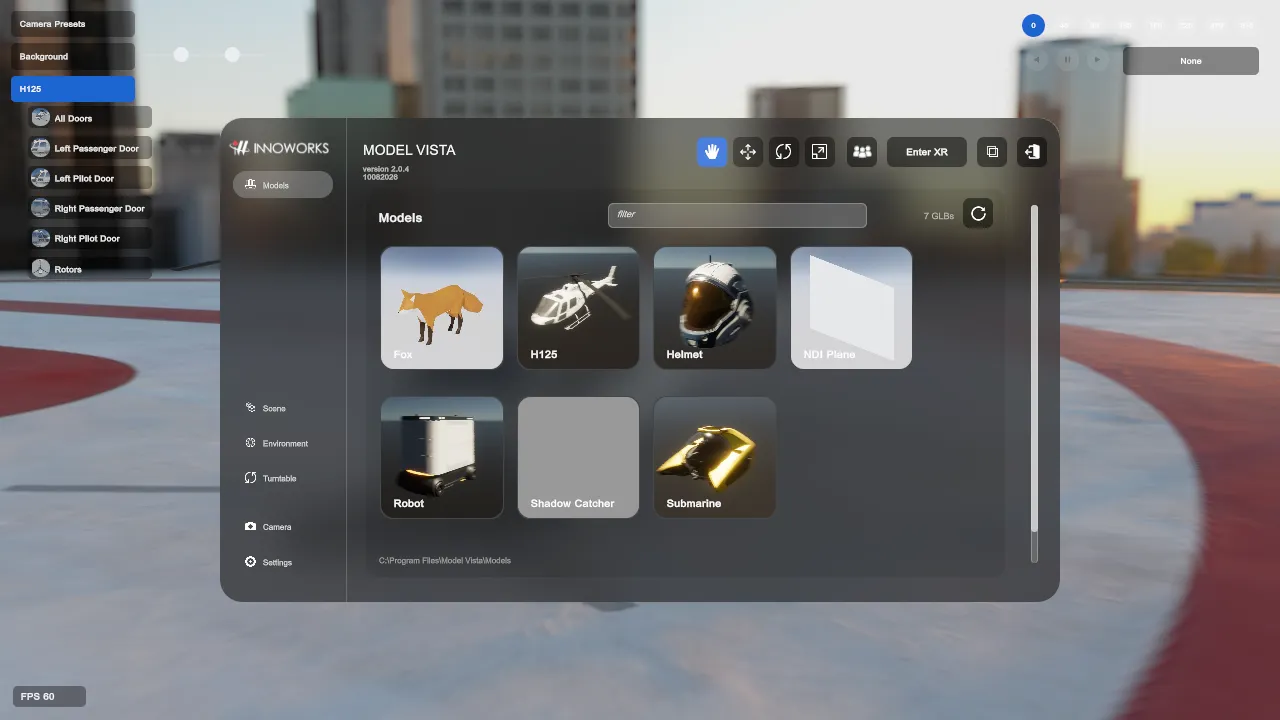
- To change the layout, open Settings > User Interface and select Default or Experimental under Interface Design.
- Browse a model library:
- In the Default interface, select a configured library name in the navigation.
- In the Experimental interface, select Models, then choose a library from the source selector.
- Select a GLB tile, select Load Model in the confirmation dialog, and wait for loading to finish.
- Select the loaded model:
- In the Default interface, open Scene.
- In the Experimental interface, open Scene and use the Properties panel.
- Use the Transform, States, and Analyze tabs as required. Create complex colliders only when the model needs more precise interaction than its initial box colliders.
- Select an environment:
- In the Default interface, open Environment.
- In the Experimental interface, open Backgrounds.
- Use Camera to adjust the view. Use Settings for application-wide options and Settings > Libraries to configure content sources.
- Select Enter XR when a supported XR runtime and headset are available.
- Use Multi User to create or join a local-network review room.
Licensed Modules are optional deliveries. Their controls and workflows are documented in the corresponding Module manual and are not required for this quick start.
Model Vista is an INNOWORKS product.