
Web Remote
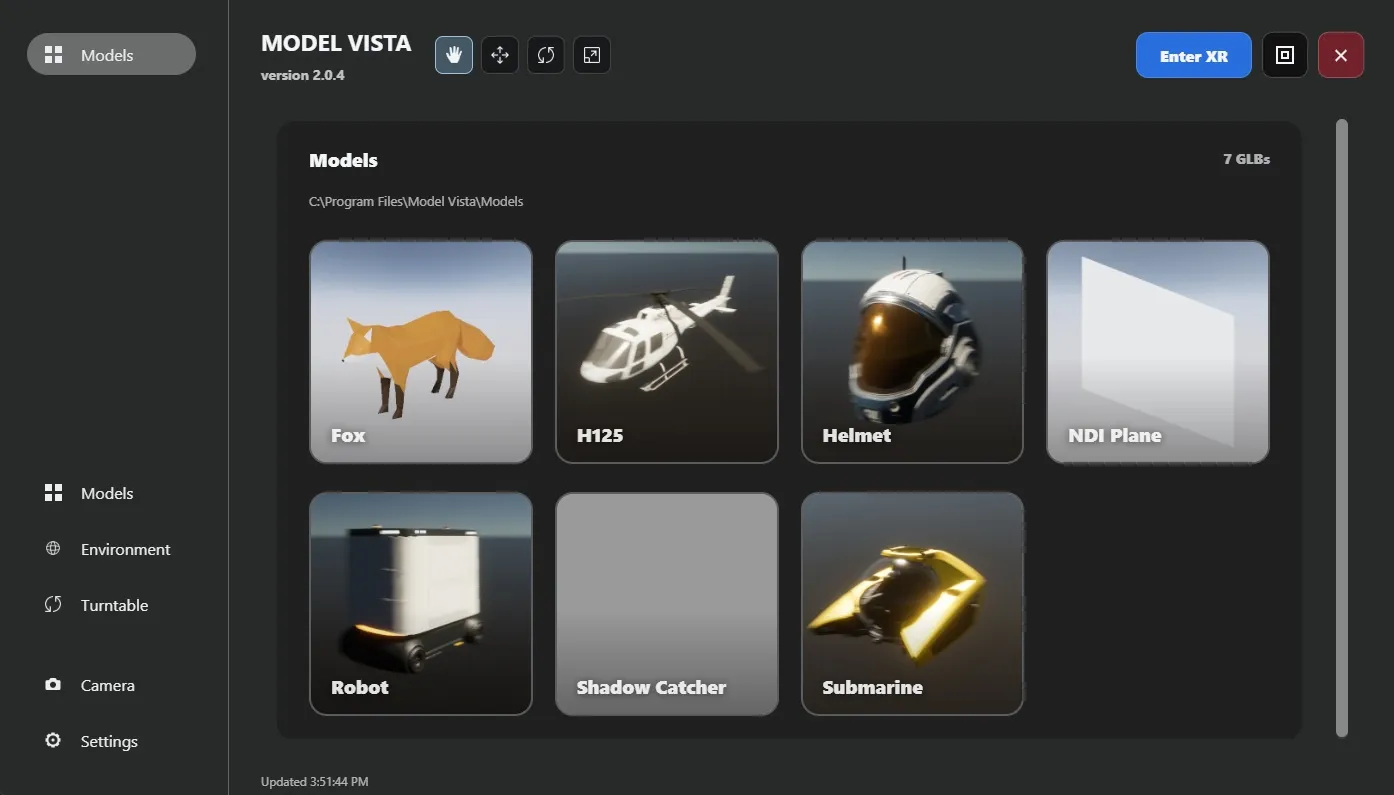
Web Remote provides browser-based controls for a running Model Vista application. The browser layout places application navigation on the left, the active page in the central work area, and the available interaction and application controls across the top.
Open Web Remote
Section titled “Open Web Remote”- In desktop mode, open Settings > Web Remote.
- If you need a different TCP port, turn Enabled off before changing Port. The default port is
8730. - Turn Enabled on.
- To open Web Remote on the Model Vista computer, select Control Page under Pages.
- To connect from another device that can reach the Model Vista computer, open
http://<host-name-or-ip>:<port>/Control/in a web browser. With the default port, for example, usehttp://<host-name-or-ip>:8730/Control/. - Confirm that the Model Vista name and version appear in the browser header.
Navigate The Remote Interface
Section titled “Navigate The Remote Interface”- Use the left navigation to open the pages currently available in the running application.
- Use the central work area to browse libraries and change the controls on the selected page.
- Use the top bar for the available interaction tools and application actions. The red Exit Application button closes Model Vista itself; close the browser tab instead if you only want to stop using the browser interface.
- To stop remote access, return to Settings > Web Remote and turn Enabled off.
Model Vista is an INNOWORKS product.