
Troubleshooting
XR Mode Does Not Start
Section titled “XR Mode Does Not Start”- Confirm the headset runtime is available before launching XR.
- Check that the platform supports the requested XR features.
- Use desktop mode if the runtime is unavailable.
Passthrough, Hand Tracking, Or Occlusion Is Missing
Section titled “Passthrough, Hand Tracking, Or Occlusion Is Missing”- Confirm the platform supports the feature.
- Confirm the app has required permissions.
- In the Meta Horizon Link desktop app Developer tab, enable Developer runtime features and Pass-through over Meta Horizon Link.
- Confirm hand tracking is enabled on the headset when hand tracking is expected.
- Check the Camera page mixed-reality section for feature availability.
Black Outlines Around Models On RTX 5090 Systems
Section titled “Black Outlines Around Models On RTX 5090 Systems”When using Model Vista on Windows with Quest 3 passthrough over Meta Horizon Link, some RTX 5090 systems may display persistent black outlines around CG models. This can occur with both wired Link and Air Link.
The following workaround has resolved the issue on affected systems:
- Open
OculusDebugTool.exeinC:Program FilesMeta HorizonSupportoculus-diagnostics. - Under Oculus Link, set Video Codec to H.264.
- Disconnect and reconnect Link, then resume Model Vista.
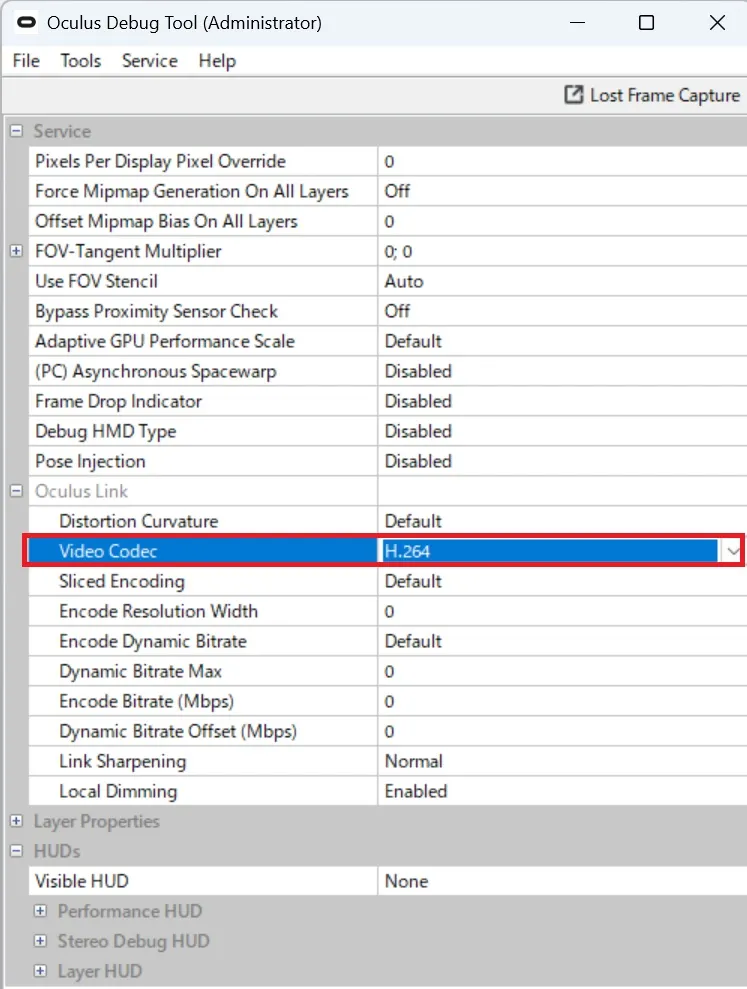
No changes to Model Vista’s rendering settings are required. The codec setting normally persists after restarting the PC. After the first restart, reopen Oculus Debug Tool to confirm Video Codec remains set to H.264.
Mixed-Reality Shadows Appear On The Wrong Surface
Section titled “Mixed-Reality Shadows Appear On The Wrong Surface”- In Quest Link / Meta Horizon Link, check Spatial Data over Meta Horizon Link.
- When this setting is enabled, surfaces detected in Horizon Space Setup receive mixed-reality shadows.
- When this setting is disabled, mixed-reality shadows fall on the XR floor height.
- Use Settings > XR Passthrough > Passthrough Shadow Opacity to adjust shadow opacity.
- If shadows appear too high, too low, or on an unexpected plane, confirm this setting before changing XR alignment or app shadow settings.
Color Adjustment Volumes Do Not Apply
Section titled “Color Adjustment Volumes Do Not Apply”- Confirm the camera is inside an enabled volume box.
- Confirm the volume points to the intended camera adjustment preset.
- Enable Show Setup Boxes from Camera > Color Adjustment Volumes (Advanced) to inspect placement and size.
- If a saved adjustment preset was deleted, confirm the volume did not fall back to Default.
Path Tracing, HDR Output, Or Depth Of Field Is Missing
Section titled “Path Tracing, HDR Output, Or Depth Of Field Is Missing”- Path tracing and Depth Of Field appear only in desktop mode and only when the active HDRP volume/profile contains the corresponding override support.
- Path tracing and HDR output are not currently supported together; enabling path tracing disables HDR output.
- Depth Of Field is hidden or disabled while XR mode is active.
Web Remote Does Not Start
Section titled “Web Remote Does Not Start”- Confirm Settings > Web Remote > Enabled is on.
- Confirm desktop mode is active; Web Remote settings are disabled while XR mode is active.
- Confirm the configured port is between
1and65535and is not already in use. - Stop Web Remote before changing the port.
- If no Exposer server is available in the scene, Web Remote cannot start.
Multi User Rooms Do Not Appear Or Connect
Section titled “Multi User Rooms Do Not Appear Or Connect”- Confirm all machines are on the same local network.
- Confirm the selected port, default
7777, is allowed through the firewall. - Confirm UDP discovery port
47777is allowed when you want automatic room discovery. - Use Join By IP when discovery does not find a local room.
- Disconnect before creating or joining a different room.
Background Thumbnails Are Missing
Section titled “Background Thumbnails Are Missing”- For HDR backgrounds, confirm the sidecar image uses the same base filename as the
.hdrfile and uses.jpg. - For GLB backgrounds, confirm the GLB has embedded thumbnail data or a matching
.jpg/.pngsidecar. - Click Refresh after adding thumbnail files.
Module Controls Are Missing
Section titled “Module Controls Are Missing”- Open Settings > License to confirm the installation is licensed and the Module is enabled for this app.
- Module tabs and controls are hidden when the license is missing, disabled by the user, or still refreshing.
- Restart the app after licensing changes if controls do not appear after the license status refresh.
How To Revert To Factory Defaults
Section titled “How To Revert To Factory Defaults”Deleting the settings files removes all customized settings. Back up the files first if you may need to restore them.
- Open Settings and select Settings Folder to open the runtime user settings folder.
- Close Model Vista.
- Delete all
.jsonfiles in the settings folder. - Reopen Model Vista. The app recreates the settings files from its defaults.
Default Settings Do Not Apply
Section titled “Default Settings Do Not Apply”- Default seed files are only copied when the matching user settings file does not already exist.
- Existing files in the user
Settingsfolder override{AppRoot}/DefaultSettings. - To reseed a file from defaults, back up and remove or rename the matching user settings file, then restart the app.
- Confirm the default file is placed directly in
{AppRoot}/DefaultSettingsand uses the exact supported filename.
Settings Revert Or Upgrade Unexpectedly
Section titled “Settings Revert Or Upgrade Unexpectedly”- The app upgrades older settings files when new fields are introduced.
- Invalid or missing fields are reset to defaults.
- Some settings are split across app, camera, preset, library, background, graphics snapshot, sidecar, and Module JSON files; check the specific file for the control you changed.
- Back up JSON files before editing them manually.
Model Vista is an INNOWORKS product.