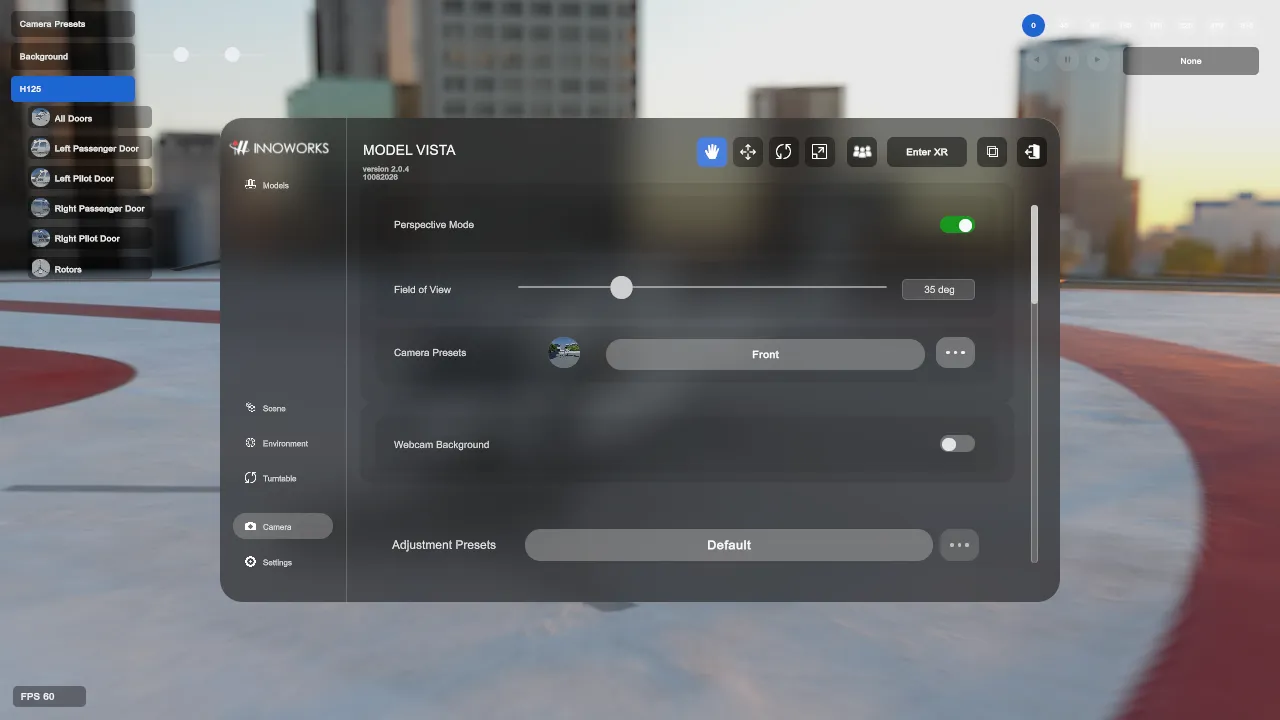
Camera
The Camera controls manage desktop lens settings, saved camera presets, mixed-reality controls, XR alignment presets, and image adjustments. Open Camera from the Default navigation or from the Experimental right panel.
Lens And Mixed-Reality Controls
Section titled “Lens And Mixed-Reality Controls”- Perspective Mode: Switches the desktop camera between perspective and orthographic projection.
- Field of View: Adjusts perspective lens width in desktop mode.
- Size: Adjusts orthographic size in desktop mode.
- Passthrough Mode: Enables supported XR passthrough.
- Occlusion Mode: Enables supported XR occlusion when exposed by settings.
- XR Alignment Mode: Enables alignment controls for runtime content in XR.
- XR Alignment Presets: Select, save, rename, duplicate, overwrite, or delete XR alignment presets.
- Licensed Modules can add Camera controls after the Module is licensed and enabled. Those controls are documented in the Module manual.
Camera Presets
Section titled “Camera Presets”Camera Presets store Non-XR camera position, rotation, projection mode, field of view, orthographic size, and thumbnail path.
- Select Default, Custom, or a saved camera preset from the Camera page.
- The options dialog can save changes, save the current view as a new preset, rename, duplicate, overwrite, or delete saved presets where available.
- The Show Presentation Camera Preset Controls setting can expose compact Non-XR camera preset buttons without reopening the full browser panel.
To save a repeatable documentation view:
- Frame the model and set Perspective Mode, Field of View, or Size as needed.
- Select the options button beside Camera Presets.
- Enter a preset name and select Save as New.
- Select the saved preset, then use Generate Thumbnail if you want to replace its preview image.
- After changing the selected preset’s view, use Save Changes to overwrite it.
Camera Adjustment Presets
Section titled “Camera Adjustment Presets”Adjustment Presets store camera image settings such as white balance, color curves, color wheels, exposure, exposure compensation, bloom, and Depth Of Field.
- The options button is disabled for Default.
- For Custom, the options dialog can save the current values as a new preset.
- Saved presets can be renamed, overwritten with current values, duplicated, or deleted.
Depth Of Field
Section titled “Depth Of Field”Depth Of Field is available in compatible desktop HDRP builds. It is not available in XR mode.
- Enabled toggles the HDRP Depth Of Field override.
- Quality selects the supported HDRP quality level.
- Near Range Start/End and Far Range Start/End control the manual focus ranges.
- Auto Focus moves the active focus envelope with the desktop camera’s navigation focus.
- Switching to XR automatically disables or hides Depth Of Field controls.
Use Auto Focus
Section titled “Use Auto Focus”- Enable Enabled under Depth Of Field.
- Set Near Range Start/End and Far Range Start/End to define the width and transitions of the sharp region.
- Enable Auto Focus.
- Click a model or background point to make it the camera navigation focus.
Model Vista smoothly centers the existing focus envelope on the navigation focus. If no focus exists when Auto Focus is enabled, Model Vista requests a focus at the center of the view or in front of the camera. Click another visible point whenever you want to change the target. A point behind the camera or closer than the camera near clip plane cannot be used.
The manual range controls are read-only while Auto Focus is enabled. Turn Auto Focus off before entering exact range values. Editing a manual range also disables Auto Focus so the entered values are not immediately replaced.
Camera adjustment presets include the Auto Focus state and the four focus-range values. Selecting a preset can restore both the focus envelope and whether it follows the navigation focus. Model Vista also saves the current Auto Focus preference with its camera quality settings.
If the target does not become sharp, confirm that Enabled and Auto Focus are both on, widen the gap between Near Range End and Far Range Start, and confirm that the active scene provides an HDRP Depth Of Field override.
Exposure, Bloom, White Balance, Color Curves, And Color Wheels
Section titled “Exposure, Bloom, White Balance, Color Curves, And Color Wheels”- Auto Exposure toggles automatic exposure.
- Exposure controls manual exposure when Auto Exposure is off.
- Limit Min and Limit Max constrain automatic exposure.
- Exposure Compensation adjusts the HDRP exposure compensation value from
-10 EVto20 EV. - Bloom Amount controls HDRP bloom intensity where the active profile supports it.
- White Balance controls temperature and tint.
- Color Curves opens the curves editor for master, red, green, and blue curves.
- Color wheel controls cover Shadows/Midtones/Highlights and Lift/Gamma/Gain when the active profile supports them.
Color Adjustment Volumes
Section titled “Color Adjustment Volumes”Color adjustment volumes apply named camera adjustment presets inside configured volume boxes.
- Enable Show Setup Boxes to inspect volume placement and size.
- Each volume can be enabled/disabled, positioned, scaled, and assigned to a saved adjustment preset.
- The camera must be inside an enabled volume for that volume to apply.