
Desktop And XR Modes
Desktop Mode
Section titled “Desktop Mode”Desktop mode is the default mode.
- Press
Escto hide or show the UI panel. - Press
Oor use Camera > Perspective Mode to toggle perspective and orthographic projection. - Adjust Camera > Field of View in perspective mode.
- Adjust Camera > Size in orthographic mode.
- Hold
Shiftwhile using the mouse wheel for fine zoom. - Press
Fto fly the camera to the selected model or scene object. - Selecting a loaded model in Scene selects it and flies the desktop camera to it.
- Use the top bar buttons or
Q/W/E/Rto choose Hand, Move, Rotate, or Scale interaction. - In desktop mode, the visible browser panel blocks camera/model input, but transparent screen edges remain available for scene interaction.
Alt + left mouseis reserved for camera orbit.Ctrl + left mouseand middle click are reserved for camera fly-to/navigation behavior.- Runtime setting changes support undo/redo with
Ctrl+Z,Ctrl+Y, andCtrl+Shift+Zwhere supported.
XR Mode
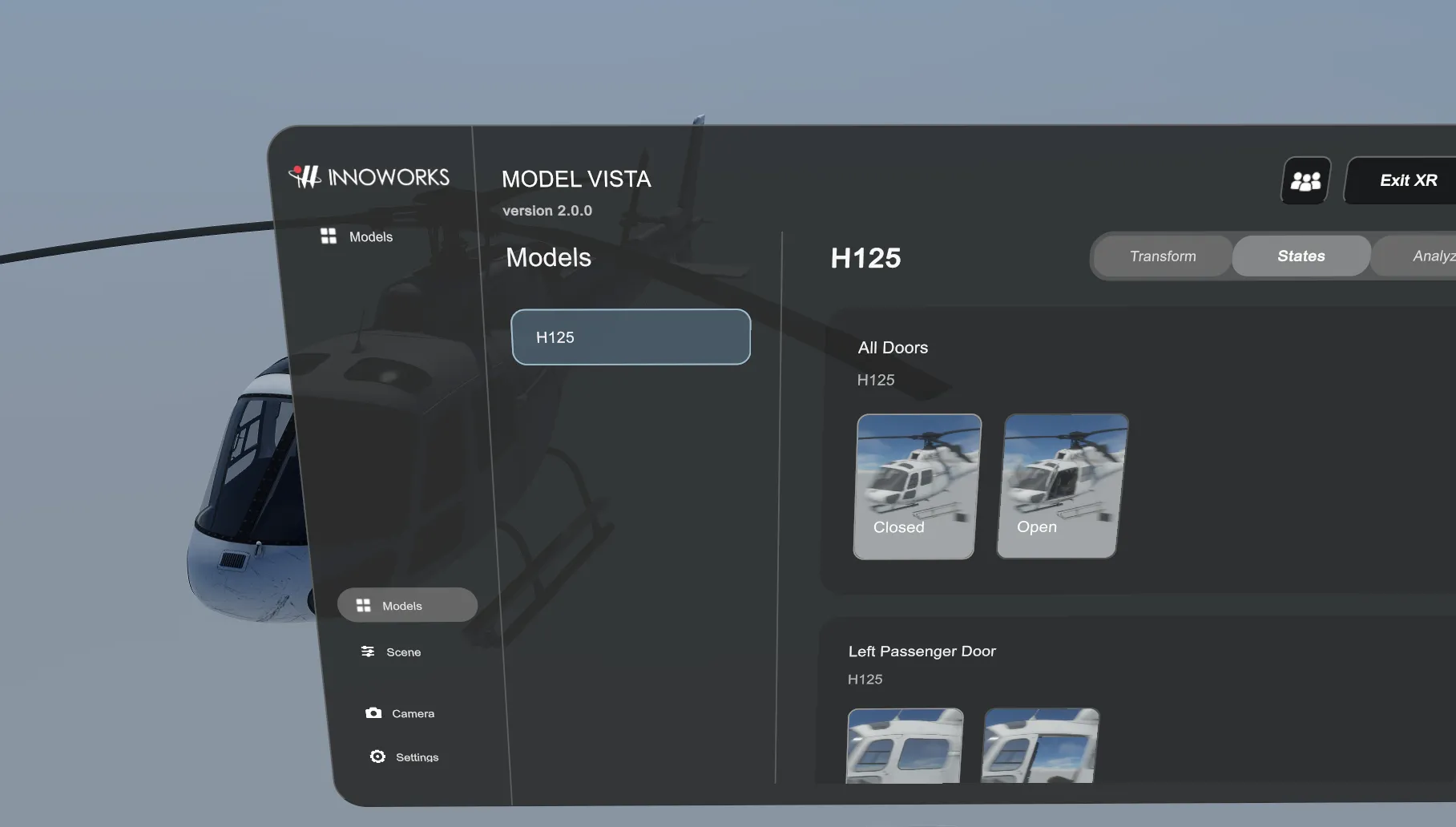
Section titled “XR Mode”XR mode starts from Enter XR.
- Use Exit XR or
Shift+Escto leave XR mode. - Press
Escto hide or show the UI panel while in XR. - Right controller stick click toggles the floating browser menu.
- XR grabbing and two-hand scaling are available for interactive loaded models.
- Background GLBs are visual background assets and do not support model interaction.
- In XR, use either controller as a pen. On Meta/Quest Touch controllers, hold A on the right controller or X on the left controller and move the controller tip to draw. Release the button to finish the stroke.
- Press B on the right controller or Y on the left controller to delete the most recent local stroke.
- Passthrough and occlusion options appear only when the active platform/runtime supports them.
- If Use Spatial Data When Available is enabled but the runtime cannot provide the needed spatial planes or anchors, XR mode can show an XR Spatial Data Unavailable information dialog. Do Not Show Again suppresses future warnings.
- When spatial data is unavailable, the app falls back to scene-origin alignment and fallback passthrough shadows for that XR session.
- Path tracing and Depth Of Field are desktop-only and are hidden or disabled while XR mode is active.
- Disable Upscaling In XR is enabled by default, so XR mode uses the selected camera anti-aliasing mode instead of advanced upscaling unless the experimental XR option is intentionally enabled on a supported system.
Model Vista is an INNOWORKS product.