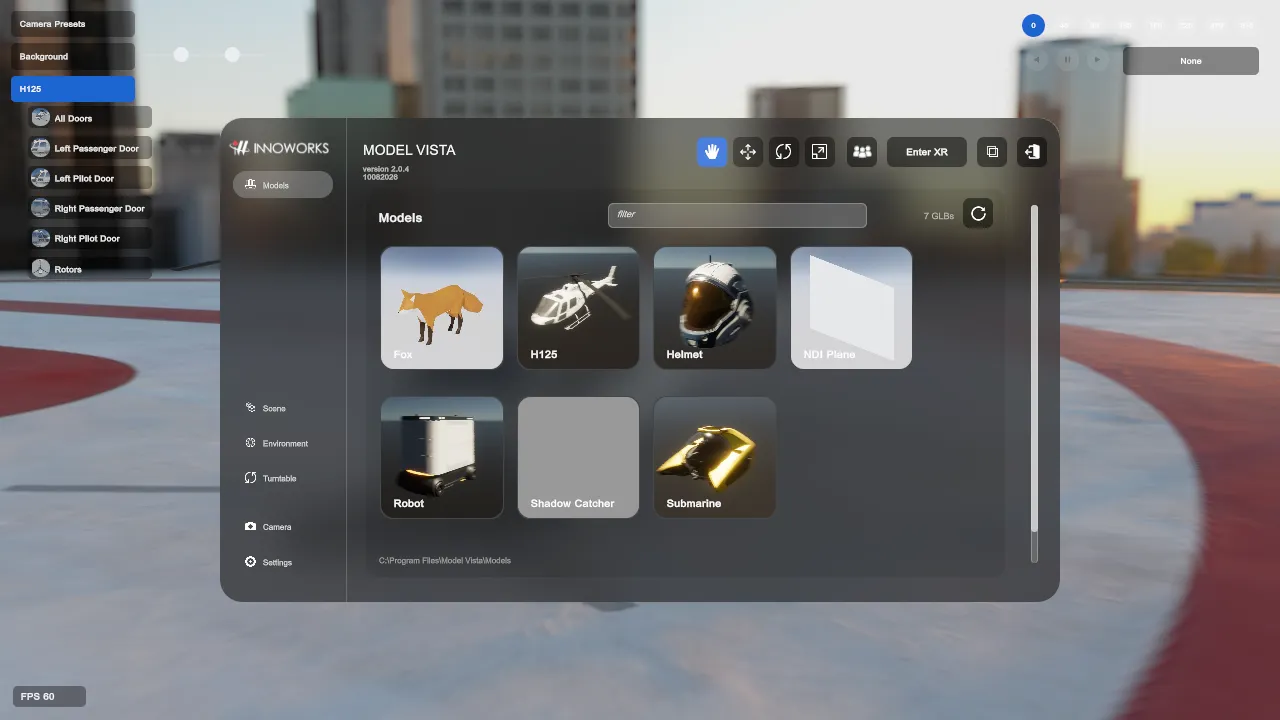
Model Libraries
Model Vista reads model and background sources from Settings/ModelVistaLibraries.json. A missing user file can be seeded from DefaultSettings/ModelVistaLibraries.json.
Browse And Load A Model
Section titled “Browse And Load A Model”- Open a model library:
- In the Default interface, select the configured library name in the navigation.
- In the Experimental interface, select Models, then select a source from the library selector.
- Select a GLB tile.
- Review the source filename in the confirmation dialog and select Load Model.
- Wait for the progress dialog to finish.
Standard model loads receive initial box-style interaction colliders. To generate detailed colliders, select the loaded model, open Transform, and select Create Complex Colliders. Select the action again to return to box colliders.
Configure Libraries
Section titled “Configure Libraries”Open Settings > Libraries to edit Model Libraries and Background Libraries.
- Select Add Model Location or Add Background Location to add a row.
- Set Storage to Local for a filesystem source. Enter or browse to its location.
- Set Storage to Unity Cloud for an Asset Manager source. Sign in, then select the organization, project, and collection or folder exposed by the current account.
- Enable Streaming Assets when the location should be resolved relative to the installed application content.
- Enable subfolder searching when nested folders should be included.
- Select Save Changes to validate and store the edited libraries. Invalid local locations are rejected.
- Select Revert to discard unsaved edits.
- Select Restore Samples when the installed sample-library entries are available and need to be restored.
Changing pages with unsaved library edits prompts you to save or discard them. Closing the page by itself is not the save action.
Refresh Libraries
Section titled “Refresh Libraries”Use Refresh after adding, removing, or updating model files, background files, or thumbnail sidecars. Refresh is unavailable while Model Vista is loading content, generating colliders, or transitioning XR mode.
Background GLBs
Section titled “Background GLBs”Place environment/background GLBs in a configured background library instead of a model library.
- In the Default interface, browse them under Environment.
- In the Experimental interface, browse them under Backgrounds.
- Selecting a background GLB replaces the current background GLB and skips model interaction and collider generation.
- Model-library GLBs are treated as regular models; filename suffixes do not change that behavior.