Interface Overview
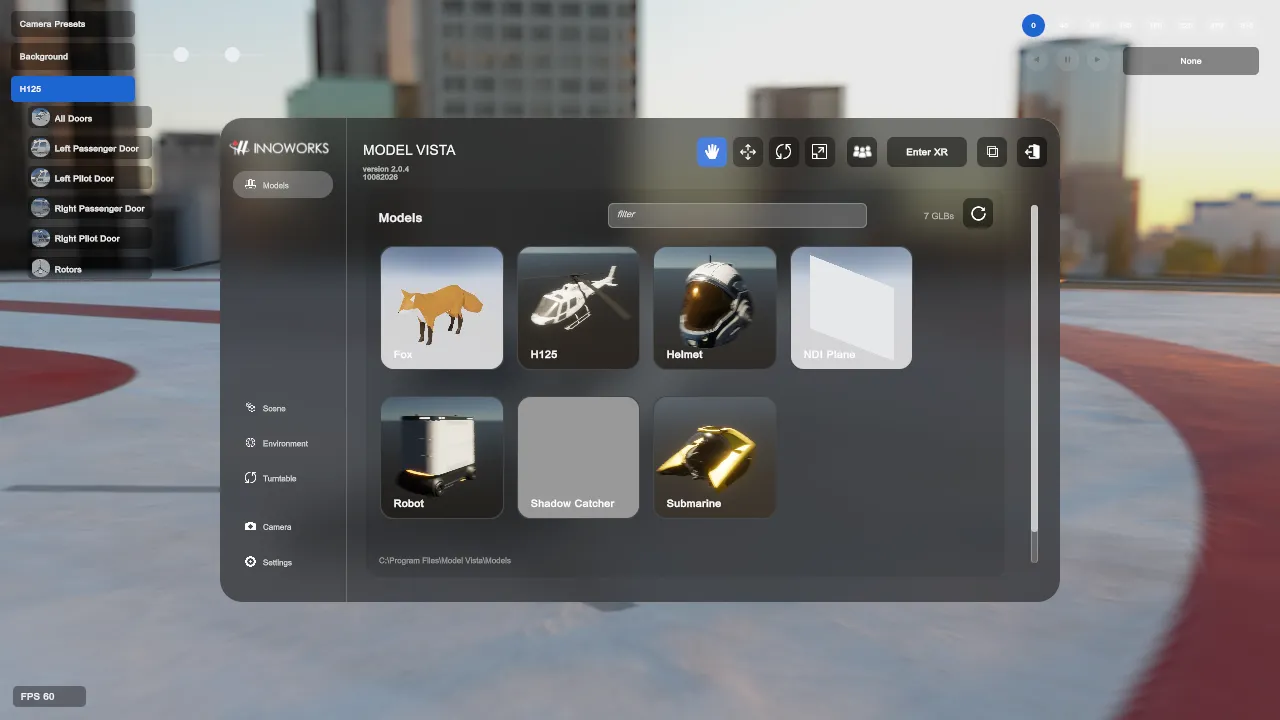
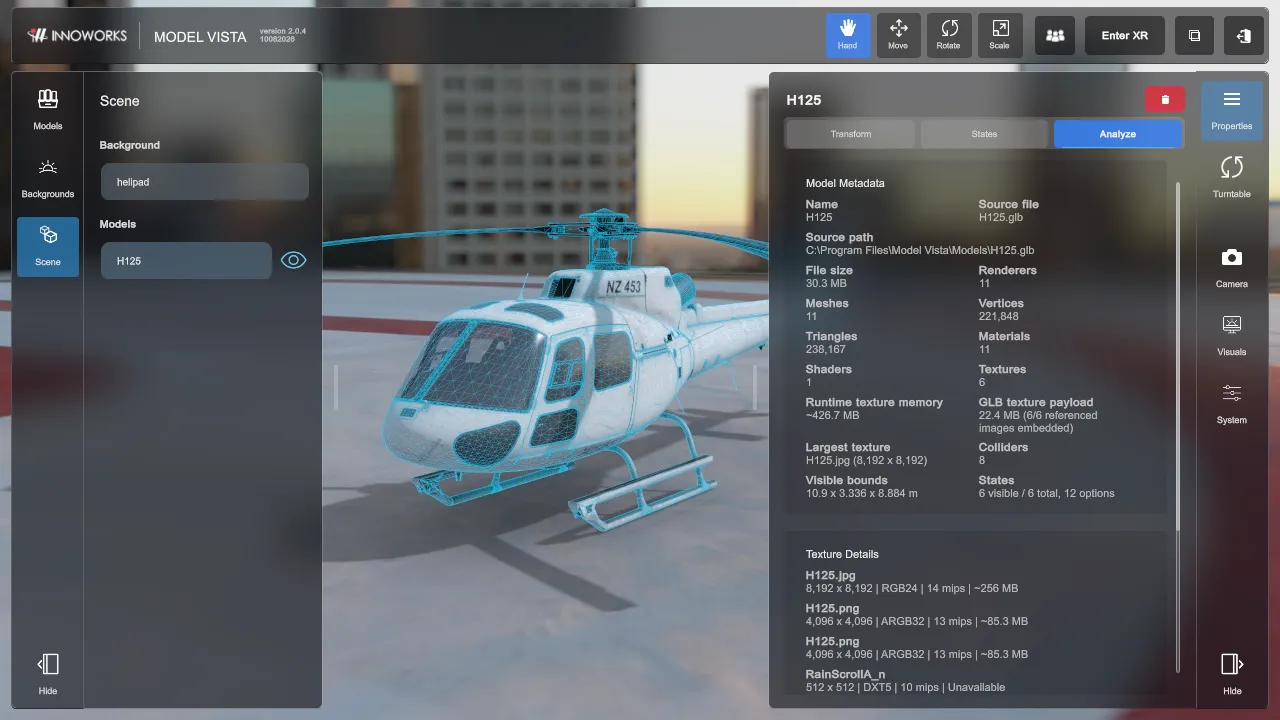
Model Vista provides two interface designs. Both use the same scene, settings, top bar, dialogs, and saved data; they arrange the navigation and properties differently.
Select An Interface Design
Section titled “Select An Interface Design”Open Settings > User Interface > Interface Design, then select Default or Experimental. The selection is saved for the next launch.
Default Interface
Section titled “Default Interface”The Default interface uses one navigation panel and a central work area.
- Each configured model library appears by name in the navigation. Select a library to browse and load its GLB files.
- Scene lists loaded models and exposes the selected model’s Transform, States, and Analyze tabs.
- Environment selects procedural, HDRI, or GLB backgrounds and exposes their settings.
- Camera contains lens, camera preset, XR alignment, and image-adjustment controls.
- Settings contains application-wide settings and utility actions.
Experimental Interface
Section titled “Experimental Interface”The Experimental interface separates browsing and selection on the left from contextual controls on the right.
- The left panel contains Models, Backgrounds, and Scene.
- Models and Backgrounds use a source selector for switching between configured libraries.
- Scene lists loaded content. Selecting a model or background updates the Properties panel.
- The right panel contains Properties, Camera, Visuals, and System.
- Visuals groups visual settings such as XR Passthrough, Display, Sun/Moon, Graphics, Anti-Aliasing, and HDR Output.
- System contains the remaining application settings and utility actions.
- The side panels can be collapsed and resized. Their widths are saved between sessions.
Licensed Modules can add navigation entries, settings sections, controls, or dialogs after the Module is licensed and enabled. Module workflows are documented separately.
Top Bar
Section titled “Top Bar”- Hand, Move, Rotate, Scale: Select the desktop interaction tool. The shortcuts are
Q,W,E, andRwhen a text field is not focused. - Multi User: Create, discover, join, or leave local-network review rooms.
- Enter XR / Exit XR: Start or stop XR mode when a supported runtime is available.
- Fullscreen / Window: Toggle the desktop window mode.
- Exit Application: Close Model Vista after confirmation.
The presentation overlay can show compact state, background, camera-preset, and performance controls without keeping the main panels open. Configure these controls under Settings > User Interface.