
Settings
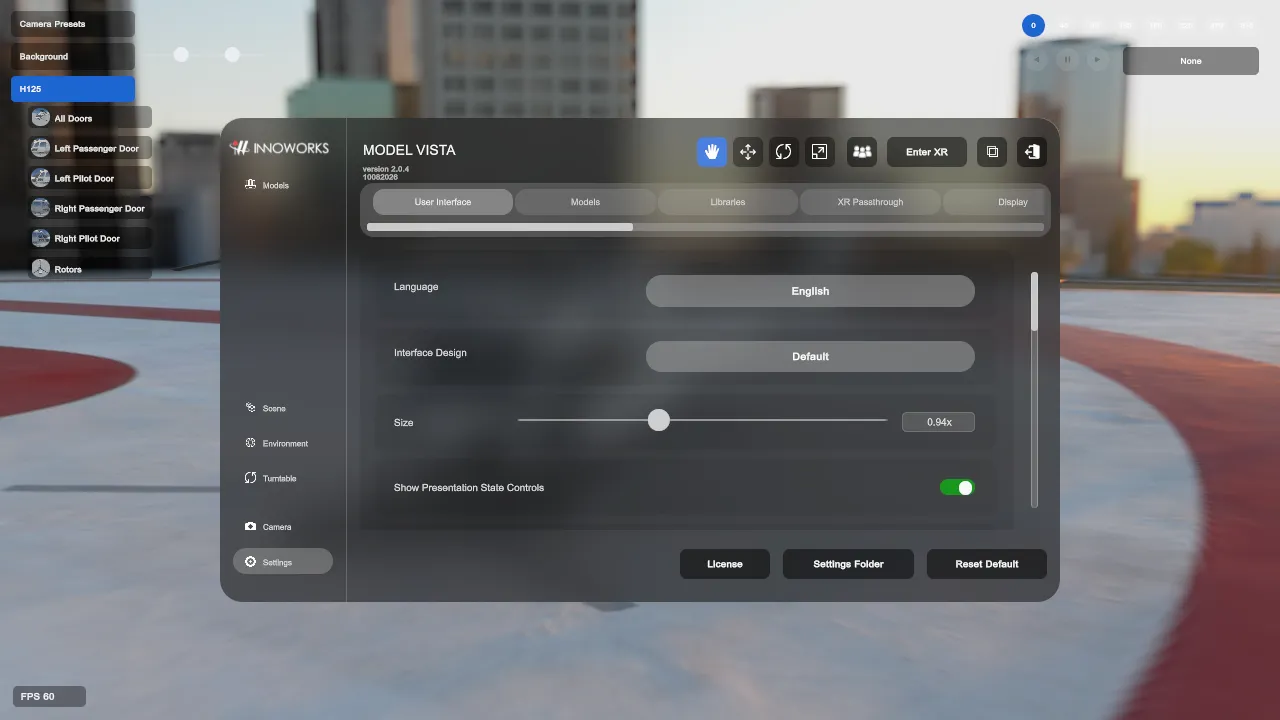
The Settings page contains application-wide controls and utilities. In the Experimental interface, visual categories appear under Visuals and the remaining categories appear under System.
User Interface
Section titled “User Interface”- Language changes localized UI text where translations exist.
- Interface Design switches between the Default and Experimental layouts.
- Size adjusts desktop interface scale.
- Show Presentation State Controls displays compact Non-XR state controls for the selected model when visible state options are available.
- Show Presentation Background Controls displays compact Non-XR background controls, including the background selector and sun sliders.
- Show Presentation Camera Preset Controls displays compact Non-XR camera preset controls.
- Show Presentation FPS Overlay displays performance information in the presentation overlay.
- The adjusted and non-adjusted Non-XR and XR move-speed controls set navigation speed for their respective modes.
Models
Section titled “Models”- Lock Scale by Default controls whether newly loaded interactive models start with scale axes locked.
- Model placement controls define default placement behavior for imported or opened models.
XR Passthrough
Section titled “XR Passthrough”- Use Spatial Data When Available lets supported runtimes use spatial plane/anchor data for alignment and mixed-reality shadow stability.
- Passthrough Shadow Opacity adjusts fallback mixed-reality shadow opacity.
- Show Hand Mesh In Passthrough Mode controls hand mesh visibility when supported.
XR Passthrough settings appear only on supported runtimes.
Display And Graphics
Section titled “Display And Graphics”- Display settings control display selection, resolution, fullscreen/window mode, vertical sync, and frame-rate caps.
- Graphics settings include ray tracing, path tracing, screen-space global illumination, screen-space reflections, and recursive rendering where the active HDRP configuration supports them.
- Anti-Aliasing settings include camera anti-aliasing and supported upscaling, dynamic-resolution, and frame-generation options.
- HDR Output controls configure HDR presentation on supported displays.
- Path tracing and HDR output are not currently supported together; enabling path tracing disables HDR output.
Display controls are unavailable in XR. Anti-Aliasing and HDR Output settings are not exposed in the Quest standalone build.
Upscaling And Frame Generation
Section titled “Upscaling And Frame Generation”The Anti-Aliasing category exposes advanced upscaling in supported Windows HDRP builds.
Advanced Upscaling
Section titled “Advanced Upscaling”- Enable Advanced Upscaling turns hardware-supported temporal upscaling on or off. When it is off or unavailable, the selected Anti-Aliasing Mode is used instead.
- Upscaling Technology provides Automatic, NVIDIA DLSS 4, AMD FSR 4, and AMD FSR 3.
- Automatic tries NVIDIA DLSS 4, then AMD FSR 4, then AMD FSR 3 according to hardware support. DLSS 4 requires a supported NVIDIA GPU; FSR 4 requires a supported AMD GPU. FSR 3 is also used as a compatibility fallback where supported.
- If an explicitly selected technology is unavailable, Model Vista tries another supported provider. Check Active Technology to see the provider actually in use and whether it is a fallback.
- Use Custom Upscaling Quality exposes Native AA, Ultra Quality, Quality, Balanced, Performance, and Ultra Performance. When custom quality is disabled, Quality is used.
- NVIDIA DLSS 4 uses Quality when Native AA or Ultra Quality is selected because those modes are not reliably supported by the current provider.
- Upscaling Sharpening applies additional sharpening after upscaling. It is temporarily suspended while XR passthrough is active so the passthrough image alpha remains valid.
- Disable Upscaling In XR is enabled by default. Turning it off allows experimental advanced upscaling in XR on supported systems.
Frame Generation
Section titled “Frame Generation”- Enable Frame Generation is available in supported Windows x64 HDRP standalone builds using Direct3D 11 or Direct3D 12 on AMD hardware.
- The current implementation uses AMD FSR 4 Frame Generation with an automatic FSR 3 fallback.
- Frame Generation is unavailable while XR is active.
- While Frame Generation is active, Model Vista temporarily forces vertical sync off and restores the previous preference when Frame Generation is disabled.
- Active Technology reports whether upscaling and Frame Generation are off, starting, active, using a fallback, or unavailable.
Web Remote
Section titled “Web Remote”- Enabled starts or stops the Exposer REST server used by browser-based remote operation.
- Port sets the TCP port. The default port is
8730, and valid values are1through65535. - Stop Web Remote before changing the port.
- Web Remote settings are disabled while XR mode is active.
Multi User
Section titled “Multi User”- Configure the local display name and color used for Multi User rooms.
Libraries
Section titled “Libraries”- Edit model and background library sources.
- Choose Local or Unity Cloud storage and configure Streaming Assets and subfolder search where applicable.
- Use Save Changes to commit edits or Revert to discard unsaved edits.
License Dialog
Section titled “License Dialog”Use Settings > License to review Module entitlements, enable or disable licensed Modules for this app, and copy the Machine ID for support workflows. A Module may add its own settings category after it is licensed and enabled.
Utilities
Section titled “Utilities”- Settings Folder opens the runtime user settings directory.
- Reset Default resets the selected settings category to its startup defaults after confirmation.
- In Libraries, Reset Default restores installed default library entries without deleting model or background files.
Model Vista is an INNOWORKS product.